Run the whole show from QLab
Your QLab cue list can run the speaker timer, the run of show and the cue lights, not just the slides. KueSync answers to 131 QLab commands and runs up to four on one GO. It works the other way too: KueSync starts your QLab cues on the Timer’s warning, at zero, on a slide or on Show Flow GO.
Follow QLab needs QLab 5.3 or later. Network cues work with any version of QLab.
What QLab can run
1What a QLab cue can run
A cue map line or a Network cue can run nearly anything you would press in KueSync Control. KueSync answers to 131 QLab commands, the same set as its Companion module, and runs up to four of them on one GO.
Every address, with its arguments, is in the FAQ and on the Leader’s own QLab guide.
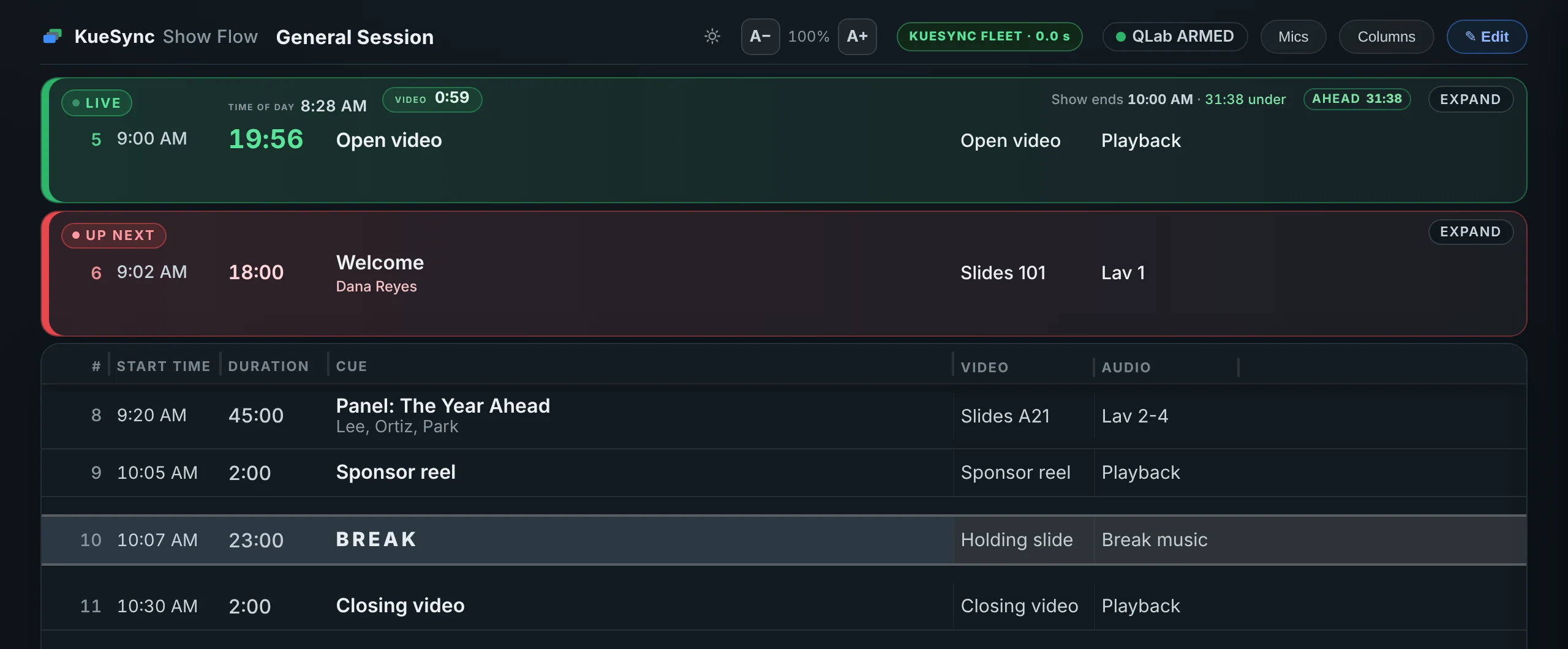
2A general session run from QLab
The sound op presses GO in QLab as usual. These cue map lines on the KueSync Leader run everything else.
| QLab cue | Cue map line | What happens |
|---|---|---|
| 5 Open video | slide/goto 1; timer/setstart 20 0 | Every machine is on slide 1 and a 20 minute Timer starts. |
| 6 Walk-on: Dana Reyes | deck/launch 101; notes/zoom 120 | Her deck opens on every machine and the notes zoom to 120%. |
| 8 Panel walk-on | deck/launch A21; timer/restart 45 0; timer/message "Panel: 45 minutes" | The panel deck, a 45 minute Timer and a message for the panel. |
| 9 Sponsor reel | advancer/lock on; timer/message/clear | The clickers lock while the reel plays. |
| 10 Break music | advancer/lock off; timer/hardout "10:30 AM" | The Timer counts down to the end of the break. |
| 11 Closing video | timer/fade on | Every Timer screen fades out. |
With Show Flow following QLab, the run of show moves on each of those GOs too, and the GO Light flashes each one in the wings. KueSync starts QLab cue W1 at the two-minute warning and Z1 at zero.
During the show
3Show Flow and the GO Light
Under Follow options in Settings › Integrations › QLab:
- With Show Flow follows QLab, a QLab cue with the number of a Show Flow cue takes Show Flow there. Cue 5 in QLab is cue 5 on every Show Flow screen.
- With QLab GOs on the GO Light, each GO in QLab flashes GO on every GO Light, with its cue number (Cue Lights and the GO Light).
- With Panic fades the Timer, QLab Panic or Hard Stop fades every Timer screen out, ready to rerack.
- Cue names to the crew shows QLab cue names on KueSync Control, Show Flow and the GO Light. With it off, they show numbers only.

Open the GO Light on any screen in the wings, or on a phone. The stage manager sees each GO with its cue number and name, the moment the sound op fires it.
Show Flow’s own GO and Standby still work. QLab can drive them too, with showflow/next and showflow/standby (Calling the show with Show Flow).
4Video count-outs from QLab
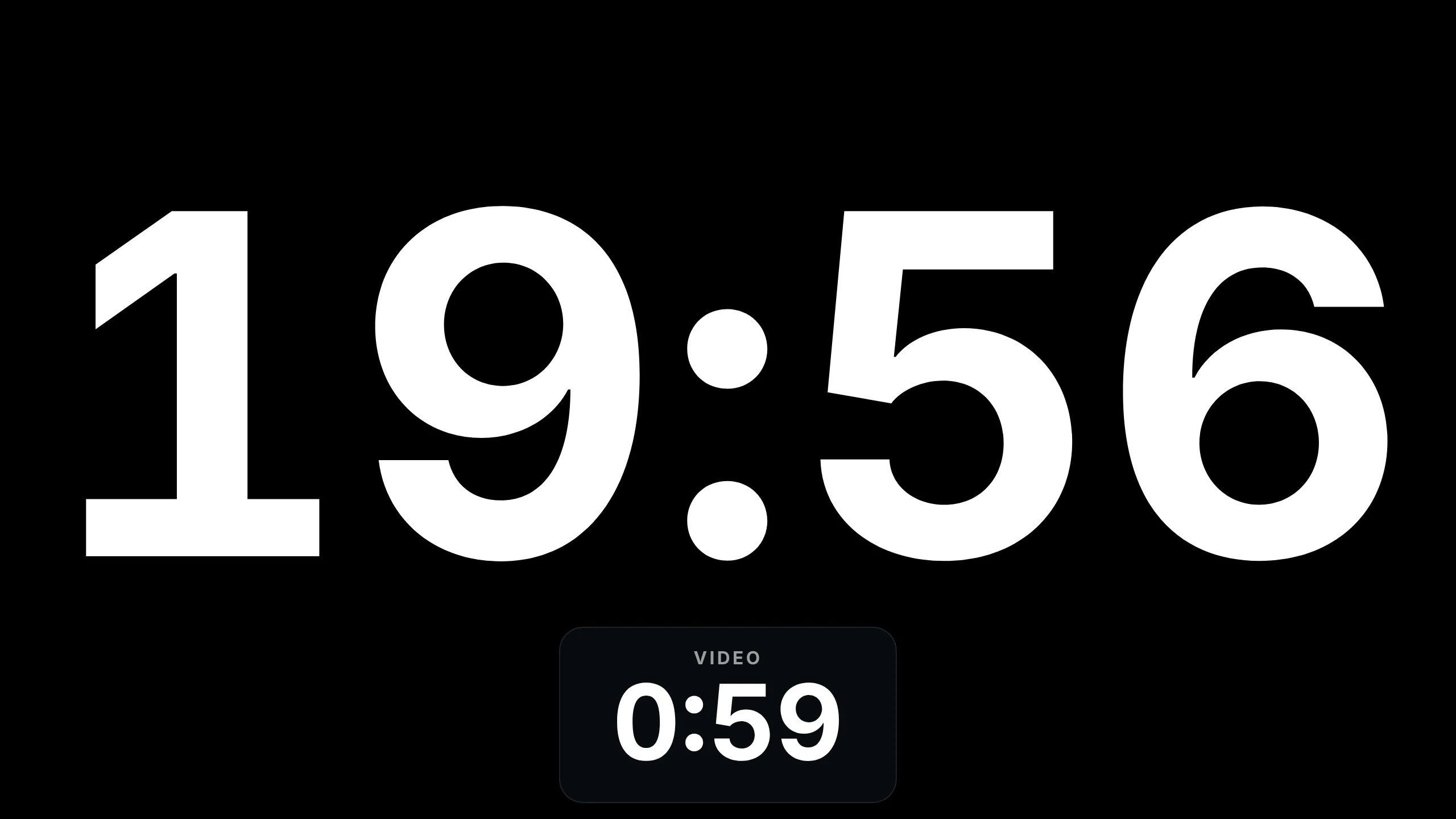
With Follow QLab on, KueSync reads the time left on the Video cue running in the QLab it follows. There is nothing to point and no OSC to set up in QLab.
- In Settings › Integrations › OSC input, set Default source to QLab (running video cue).
- In Settings › Displays › Timer screen, turn on Video count-out below the timer.
KueSync Control shows the same time under the Timer, and Show Flow shows it on the live cue (Video count-outs).
5QLab cues KueSync starts
Start QLab cues, under More QLab options, is on by default. Give a QLab cue the number for the moment it should start on. KueSync starts it on the Macs in QLab Macs, or on the Leader’s own QLab when that list is blank. A QLab on another Mac also needs a KueSync passcode set and a QLab OSC passcode with Control access. Keep these cues short. QLab does not restart a cue that is running.
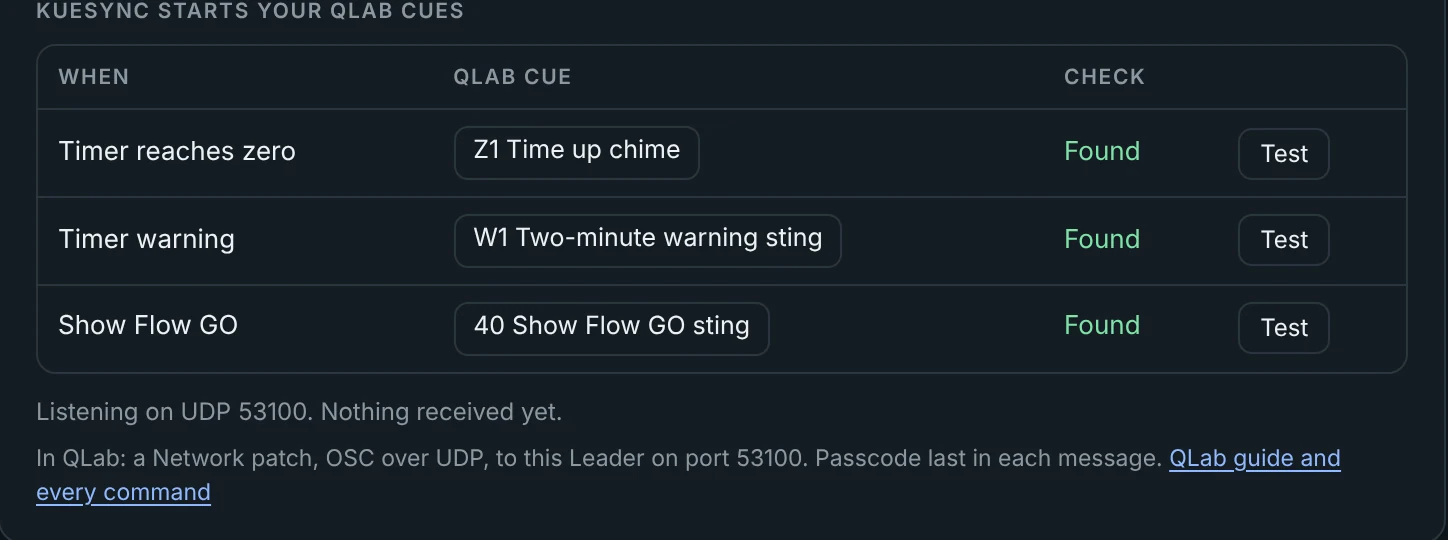
Or pick the cues by number. Under KueSync starts your QLab cues, choose a QLab cue for Timer reaches zero, Timer warning and Show Flow GO, and press Test to start it once.
| QLab cue number | Starts when |
|---|---|
ks.timer.warning | The Timer reaches its warning. |
ks.timer.zero | The Timer reaches zero. |
ks.slide.12 | Slide 12 comes up (any slide number). Slide cues start going forward only. |
ks.A21.slide.4 | Slide 4 comes up in the deck with Launch ID A21. |
ks.showflow.go | Show Flow goes. |
ks.showflow.go.305 | Show Flow goes to cue 305. |
ks.showflow.standby.on | The Show Caller’s Standby comes on. |
ks.cuelight.go | A Cue Light GO. |
The full list is in the FAQ. With a fleet tag, the cue numbers include it, as in ks.stage-a.timer.zero. Send feedback sends the slide, the Timer, Show Flow and the fleet’s state back to the QLab Macs as OSC, for scripts and tools that read it.
6When a machine fails
- With a backup QLab Mac set, KueSync follows the backup once the main QLab is lost, and goes back when it returns. Use Backup and Use Main on KueSync Control switch at once (Main and backup).
- Backup Leaders keep the fleet running if the Leader is lost. Each one needs its own cue map, KueSync passcode and QLab OSC passcode.
- Connecting, reconnecting and a failover run nothing. Only a cue that starts while the link is up runs its line.
Before doors
7Set it up
Setup is the same for slides and for the rest of the show, and it lives in one place:
- Turn on QLab control on the Leader and give it the QLab OSC passcode.
- Turn on Follow QLab, press Import from QLab, and add a line for each cue.
- Arm it. Test any line first with Test cue.
Or put KueSync commands in the cue stack as Network cues.
Questions
- What can QLab control in KueSync?
- Nearly everything you run from KueSync Control: slides and decks, the speaker timer and its messages, presenter notes and the teleprompter, Show Flow, the GO Light, cue lights, screen backgrounds, clickers and full-screen displays. That is 131 commands, the same set as the KueSync Companion module.
- Can a QLab cue start the speaker timer?
- Yes. A cue map line such as timer/setstart 20 0 sets a 20 minute Timer and starts it on the GO. On a walk-on, timer/restart 20 0 starts it from the full time even if a clock is still running. Others count to a hard out, add time or fade the clock out.
- Can the speaker timer show the time left on a QLab video?
- Yes. With Follow QLab on and the video source set to QLab, the Timer, Notes and Show Flow screens count down the Video cue that is running.
- Can QLab move Show Flow?
- Yes. With Show Flow follows QLab, a QLab cue with the number of a Show Flow cue takes Show Flow there on every screen, and the GO Light flashes GO with the cue number.
- Can KueSync start QLab cues?
- Yes. KueSync starts the QLab cue you choose when the Timer reaches its warning or zero, on a slide, or on Show Flow GO.
- Do I need AppleScript or Companion?
- No. Nothing is installed in QLab and the workspace is not changed.
Troubleshooting
| What you see | Fix |
|---|---|
| Nothing runs when QLab fires | Follow QLab is Disarmed, or the cue number is not in the cue map. The activity log shows what would have run. |
| A cue map line is refused | Settings names any line it will not run. Check the command against the dictionary, without /kuesync/. |
| No video count-out | Follow QLab is off, Default source is not QLab, or Video count-out below the timer is off. The QLab cue must be a Video cue. |
| Show Flow does not move | Show Flow follows QLab is off, or no Show Flow cue has that QLab cue’s number. |
| A ks. cue does not start | Start QLab cues is off, the QLab Mac is not in QLab Macs, no KueSync passcode is set, QLab’s OSC passcode lacks Control access, or that cue is still running from last time. |
Try it on your next show. KueSync runs on Mac and Windows. Rent to own from $7 a day.