Cue Lights and the GO Light
KueSync has two full-screen lights. Cue Lights follow the slides, with green NEXT on a forward press and red BACK on a back press. The GO Light follows Show Flow. It shows red STANDBY while the Show Caller stands by and green GO when the show goes. Both open on any screen, and neither can change anything in the show.
Before doors
1Which light is which
| Cue Lights | GO Light | |
|---|---|---|
| Follows | The slides: every advance | Show Flow: Standby and GO |
| Shows | Green NEXT, red BACK | Red STANDBY with the cue that is next, green GO with the cue that went, dark in between |
| For | The graphics op, a comfort monitor, a confidence screen | The stage manager, a crew position, a presenter’s monitor |
| Address | /kuelights on any fleet machine, port 37100 | /golight on any fleet machine, port 37100 |
2Cue Lights


The whole screen flashes, like a Perfect Cue light, in step with the fleet on every advance. When presses come fast, a small count (×2, ×3) shows how many there were. A Go to slide always flashes green NEXT, even when it jumps back. Between presses the screen is black, with a faint CUE LIGHTS, ARMED at the top. If it reads RECONNECTING, the screen is not live.
When an advancer makes a press it is not allowed to make, the screen shows dark red with a frame and BLOCKED. The slides did not move.
Open it from the KueSync menu (Mac) or tray (PC) with Open Cue Lights…, or on any machine in Settings › Displays › Cue Lights screen. Use Copy link for a phone or tablet on the show network. Move the mouse or tap the screen to show its Full screen button.
3Which presses flash it
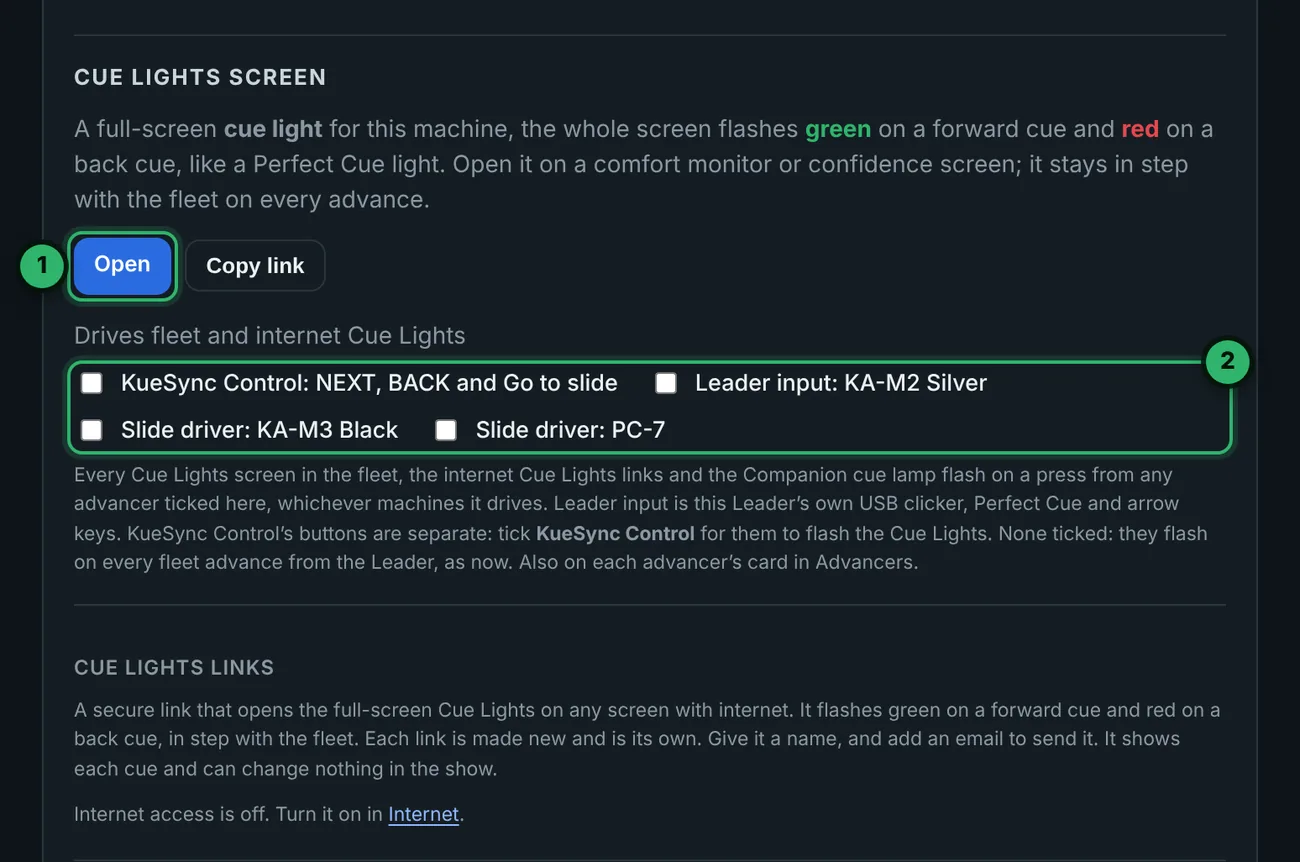
- 1Open the Cue Lights screen on this machine, or Copy link.
- 2In Drives fleet and internet Cue Lights on the Leader, tick the advancers whose presses flash the lights.
- With none ticked, every fleet advance from the Leader flashes them.
- Leader input is the Leader’s own USB clicker, Perfect Cue and arrow keys.
- A slide driver is that presenter’s clicker, whichever machines it drives. Tick only the presenter’s, and the graphics op sees the presenter’s presses and not the booth’s.
- With nothing ticked, KueSync Control’s NEXT, BACK and Go to slide flash the lights like every other advance. Once you tick any advancer, they flash the lights only if KueSync Control is ticked too.
The same choice is on each advancer’s card in Settings › Show control › Advancers (Who is advancing?).
4On the Timer, Notes and Stream Deck
- On a Timer screen, turn on Cue Lights on this clock in Settings › Displays › Timer screen and a green NEXT or red BACK flashes on the clock (Running the show clock).
- On a Notes screen, Cue Lights on the notes flashes NEXT or BACK at the top as the slide is called (Presenter notes and the teleprompter).
- On Stream Deck, use the KueSync · Cue Lights presets in Companion. The Cue light preset flashes green forward and red back. Tile it across several keys for a big lamp. The Forward lamp and BACK lamp build a two-colour panel. In the Companion connection, Cue light mode is Flash (a pulse on each move) or Latch (holds the last direction), and Cue flash hold sets how long a flash stays lit. The Stream Deck lamp also flashes on Companion’s own presses and on any slide change, whatever is ticked.
During the show
5The GO Light


The GO Light is Show Flow’s standby light. It goes red STANDBY while the Show Caller’s Standby is on, green GO for a few seconds when Show Flow goes, and dark in between, with the next cue in small type. It works with Show Flow alone and needs no Companion and no QLab. If it loses the fleet, it turns grey and reads NO LINK.
For a Private show, a GO Light on a follower machine stays dark. Open it on the Leader, or use a link.


Open it in Settings › Displays › GO Light screen on any machine, or Copy link for a phone or tablet on the show network. Add ?names=0 to the address to show cue numbers only.
6Standing by and going
- In KueSync Control, STANDBY and GO sit under the cue that is next, in the Show Flow window (Calling the show with Show Flow). Anyone allowed to press GO can also stand by.
- In Companion, the Show Flow presets stand by and GO. GO Light: flash GO flashes GO without moving Show Flow.
- From QLab,
/kuesync/showflow/standbyand/kuesync/showflow/nextwork the light through Show Flow, and/kuesync/golight/goflashes GO on its own. With Follow QLab armed and QLab GOs on the GO Light on, every GO in QLab flashes GO with its cue number (QLab and KueSync).
7Over the internet
With Internet access on, make a Cue Lights link or a GO Light link in Settings › Displays, under each screen. Give it a name, and add an email address to send it. The PIN is shown once. Later, Copy link on the link’s row copies the link again, and Copy PIN makes a new PIN (the old one stops working). Each link is separate. You can remove it at any time, and it cannot change anything in the show. For a Private show, a GO Light link shows STANDBY and GO with no cue numbers or names. More in Remote crew and screens.
Troubleshooting
| What you see | Fix |
|---|---|
| Cue Lights flash on the booth’s presses too | Tick only the presenter’s advancer in Drives fleet and internet Cue Lights. |
| Cue Lights stay black on KueSync Control’s NEXT | Another advancer is ticked in Drives fleet and internet Cue Lights and KueSync Control is not. Tick it too. |
| Cue Lights stay black on every press | Check the top of the screen. RECONNECTING means it has lost the fleet. Reload it, or open it again. |
| The GO Light never shows STANDBY | Standby comes from the Show Caller. Press STANDBY in KueSync Control, or send showflow/standby from Companion or QLab. |
| The GO Light shows numbers but no names | The address has ?names=0. |
| A GO Light shows STANDBY and GO but no cues | It is a link and the show is Private. |
| A GO Light on a follower stays dark | The show is Private. Open the GO Light on the Leader, or use a link. |
| A link does not open | Internet access is off, or the link was removed. Make a new one. |
| The Stream Deck lamp stays lit | The Companion connection is on Latch. Set Cue light mode to Flash. |