QLab and KueSync
QLab runs the cues and KueSync runs the presentation. A GO in QLab can move the slides on every Mac and PC, start the show clock, zoom the notes and move Show Flow. It needs no Companion and no AppleScript.
Before doors
1Two ways to work
The two work side by side. Use either one, or both.
- With Follow QLab, you keep pressing GO in QLab as usual. KueSync connects to the QLab workspace and hears every cue as it starts. A cue map on the Leader says what each QLab cue runs. Nothing changes in the workspace. It needs QLab 5.3 or later.
- With Network cues, you put KueSync commands in the cue stack itself, as OSC Network cues. This works with any version of QLab.
Either way, KueSync can also start QLab cues at points in the show, such as the Timer’s warning, a slide, or Show Flow GO (section 6).
2Turn it on
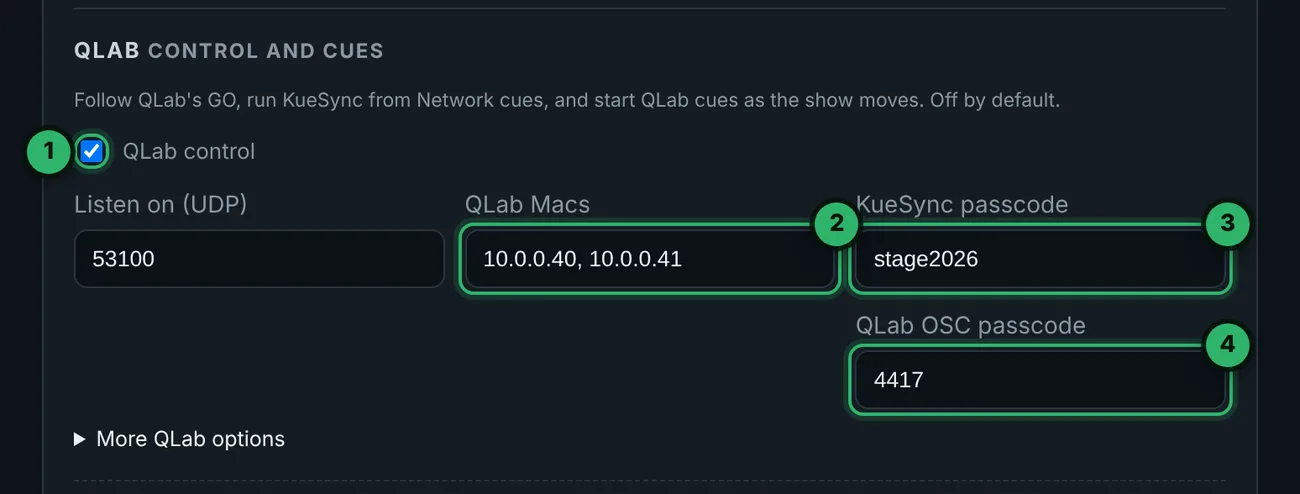
- 1Turn on QLab control on the Leader, in Settings › Integrations › QLab. It is off by default.
- 2QLab Macs holds the address of every Mac running QLab. KueSync hears only these. Leave it blank when QLab runs on the Leader.
- 3The KueSync passcode goes last in each Network cue message. A QLab on another Mac needs it. Use 8 or more letters and numbers.
- 4The QLab OSC passcode is the 4 digits from QLab’s Workspace Settings › Network › OSC Access. Follow QLab needs View access. Starting QLab cues needs Control access, or tick Control under No Passcode there.
OSC is not encrypted. KueSync listens only to the Macs you list, checks the passcode on every message, and does not reply to a message it refuses. The Leader serves the full command list at http://<leader>:37100/leader/qlab-guide, so you can read it on a show network with no internet. Open it from the QLab guide and every command link under the card. It is also in the FAQ.
3Follow QLab
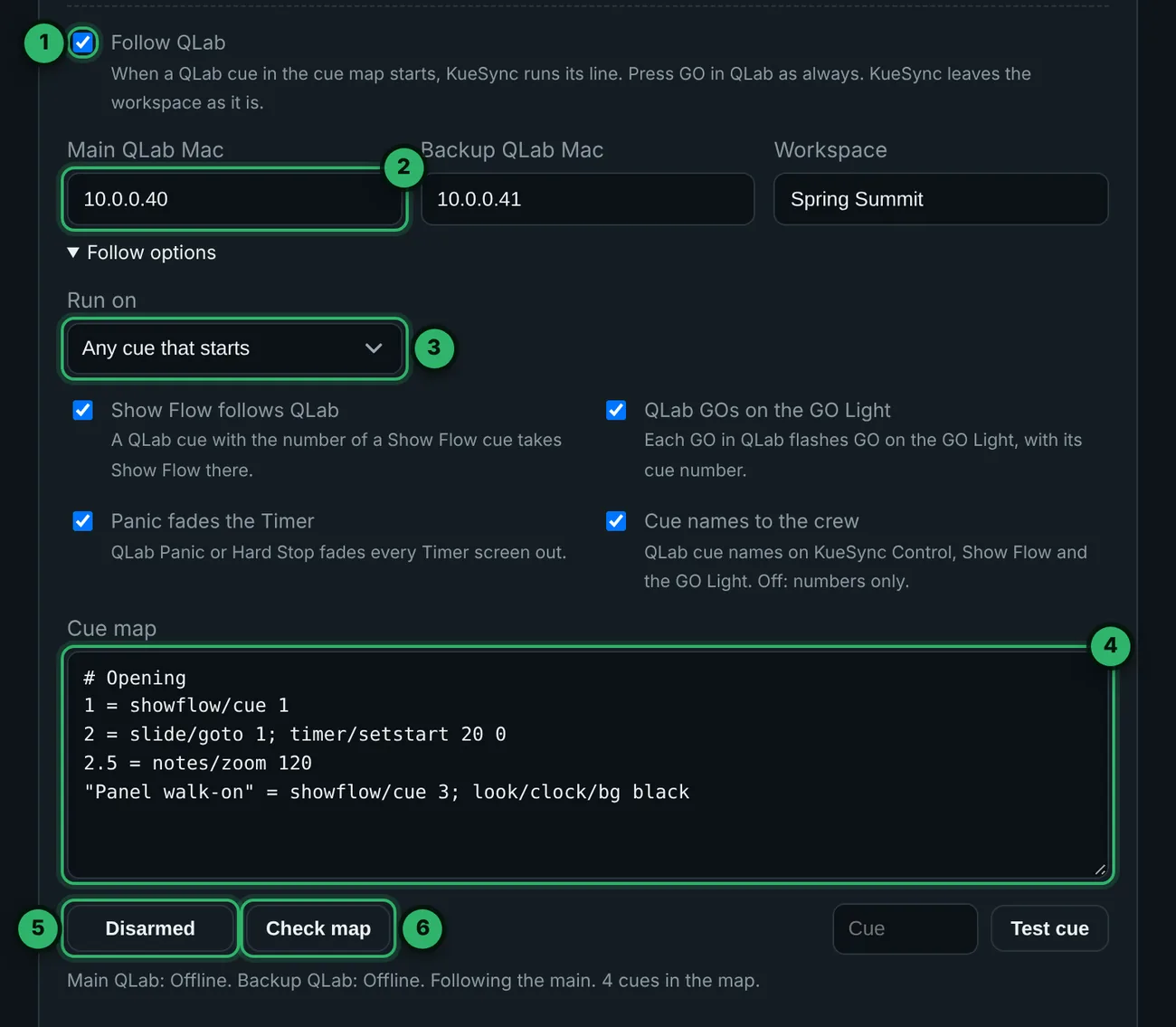
- 1Turn on Follow QLab.
- 2Set the Main QLab Mac (blank when QLab runs on the Leader), a Backup QLab Mac if you run one, and the Workspace name when more than one is open.
- 3Run on is Any cue that starts (GO, auto-continue, auto-follow, a hotkey, MIDI or timecode) or GO button only.
- 4The Cue map, one line per QLab cue.
- 5Armed or Disarmed (section 4).
- 6Check map shows the QLab name for each cue number, so you find a renumbered cue before the show.
Each cue map line is the QLab cue number, then =, then up to four KueSync commands separated by ;. Use the commands from the dictionary, without /kuesync/.
| Cue map line | Runs |
|---|---|
2 = slide/goto 1; timer/setstart 20 0 | When QLab cue 2 starts, every machine goes to slide 1 and a 20 minute Timer starts. |
2.5 = notes/zoom 120 | Cue 2.5 takes the Notes screens to 120%. |
"Panel walk-on" = showflow/cue 3; look/clock/bg black | A cue by its name, in quotes. |
# Opening | A note. Runs nothing. |
Under Follow options:
- With Show Flow follows QLab, a QLab cue with the number of a Show Flow cue takes Show Flow there. Cue 3 in QLab is cue 3 on every Show Flow screen.
- With QLab GOs on the GO Light, each GO in QLab flashes GO on every GO Light, with its cue number (Cue Lights and the GO Light).
- With Panic fades the Timer, QLab Panic or Hard Stop fades every Timer screen out, ready to rerack.
- Cue names to the crew shows QLab cue names on KueSync Control, Show Flow and the GO Light. With it off, they show numbers only.
4Arm it
Follow QLab starts Disarmed. No cue map line runs, and the activity log shows what would have run. When you are ready, press Disarmed in Settings or on KueSync Control (press the QLab chip to open its row). It changes to ARMED. A Settings PIN protects it.
- Disarmed stops the cue map only. Network cues, QLab cues KueSync starts, and Test cue still run.
- To try a line, type its cue number and press Test cue. The line runs now on the live fleet, without QLab, even when Disarmed.
- Connecting, reconnecting and a failover run nothing. Only a cue that starts while the link is up runs its line.
- KueSync Control shows the QLab link, Standby and Armed, so the operator can see whether QLab is driving.
Or in the cue stack
5Network cues
- In QLab, go to Workspace Settings › Network and add a patch. Set it to OSC, Network UDP, with the Leader’s address as the destination (
127.0.0.1when QLab runs on the Leader) and port53100. - Add a Network cue on that patch. In its message, type the address, then any arguments, with the KueSync passcode last.
- Fire the cue. Settings shows the last message KueSync heard.
| Message | Does |
|---|---|
/kuesync/slide/next stage2026 | Every machine goes to the next slide. |
/kuesync/slide/goto 12 stage2026 | Every machine goes to slide 12. |
/kuesync/timer/setstart 10 0 stage2026 | Sets a 10 minute Timer and starts it. |
/kuesync/showflow/next stage2026 | Show Flow GO. |
/kuesync/look/clock/bg black stage2026 | Every Timer screen gets a black background. |
- Text with spaces goes in double quotes, such as
"2:00 PM". Without them QLab sends two arguments. - To reach only some machines, give their numbers, names or addresses, such as
"1,3". Leave them out for the whole fleet. - With backup Leaders, send each cue to them too, with a Group cue that fires all its children. Only the acting Leader acts.
- For more than one fleet, give each Leader a Fleet tag under More QLab options. Then
/kuesync/stage-a/slide/nextreaches only that fleet.
Every address, with its arguments, is in the FAQ and on the Leader’s own QLab guide.
6QLab cues KueSync starts
Start QLab cues, under More QLab options, is on by default. Give a QLab cue the number for the moment it should start on. KueSync starts it on the Macs in QLab Macs, or on the Leader’s own QLab when that list is blank. A QLab on another Mac also needs a KueSync passcode set and a QLab OSC passcode with Control access. Keep these cues short. QLab does not restart a cue that is running.
| QLab cue number | Starts when |
|---|---|
ks.timer.warning | The Timer reaches its warning. |
ks.timer.zero | The Timer reaches zero. |
ks.slide.12 | Slide 12 comes up (any slide number). |
ks.showflow.go | Show Flow goes. |
ks.showflow.go.305 | Show Flow goes to cue 305. |
ks.showflow.standby.on | The Show Caller’s Standby comes on. |
ks.cuelight.go | A Cue Light GO. |
The full list is in the FAQ. With a fleet tag, the cue numbers include it, as in ks.stage-a.timer.zero. Send feedback sends the slide, the Timer, Show Flow and the fleet’s state back to the QLab Macs as OSC, for scripts and tools that read it.
7Main and backup
- With two QLab Macs, KueSync follows the main QLab while it is connected and the backup once the main is lost. That can take up to 15 seconds when the main goes quiet without disconnecting. To switch at once, choose Backup on KueSync Control. A cue already run from the other Mac in the last 2 seconds does not run again.
- On backup Leaders, QLab control and Follow QLab travel with the fleet’s settings, but each Leader keeps its own cue map, KueSync passcode and QLab OSC passcode. Type all three on each backup Leader too.
- KueSync leaves the QLab workspace as it is. It edits nothing there and starts only the
ks.cues you number for it.
Troubleshooting
| What you see | Fix |
|---|---|
| Nothing runs when QLab fires | Follow QLab is Disarmed, or the cue number is not in the cue map. The activity log shows what would have run. |
| Main QLab: Offline | KueSync cannot reach QLab. Check the address, that QLab is open, and the network. Other problems show by name: Name the workspace, Wrong workspace, QLab refused the passcode, Needs QLab 5.3 or later. |
| A Network cue does nothing | The QLab Mac is not in QLab Macs, the passcode is not last, or the patch is not UDP to port 53100. Settings shows the last message heard. |
| A cue map line is refused | Settings names any line it will not run. Check the command against the dictionary, without /kuesync/. |
| A ks. cue does not start | Start QLab cues is off, the QLab Mac is not in QLab Macs, no KueSync passcode is set, QLab’s OSC passcode lacks Control access, or that cue is still running from last time. |