Setting up Timer cues
Timer cues are a list of timed segments beside the Timer. Tap a cue to put it up next, press LOAD to make it live, then Start. Every Timer screen follows.
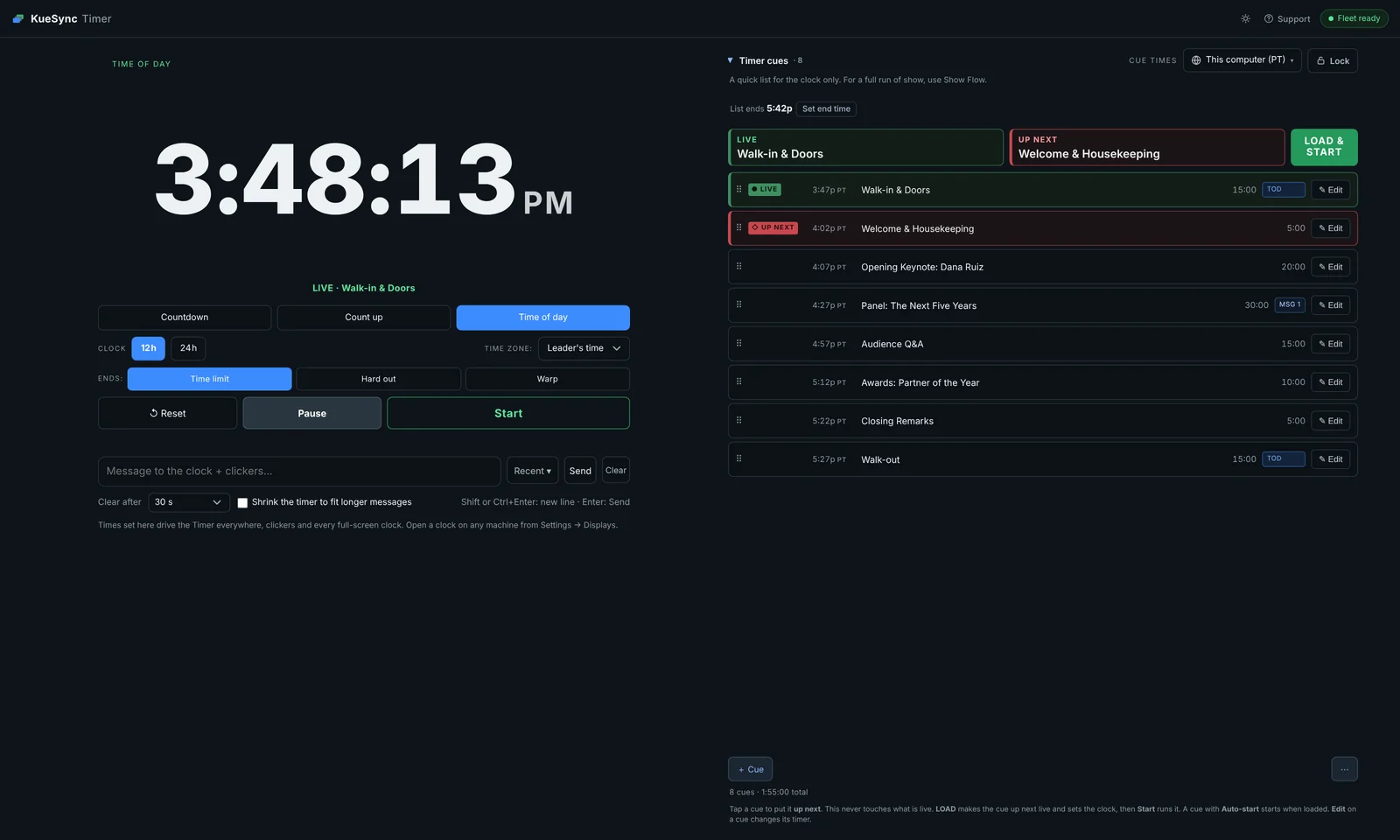
Before doors
1Put the Timer on a screen
On the machine with the stage monitor, open Settings › Displays › Timer screen.
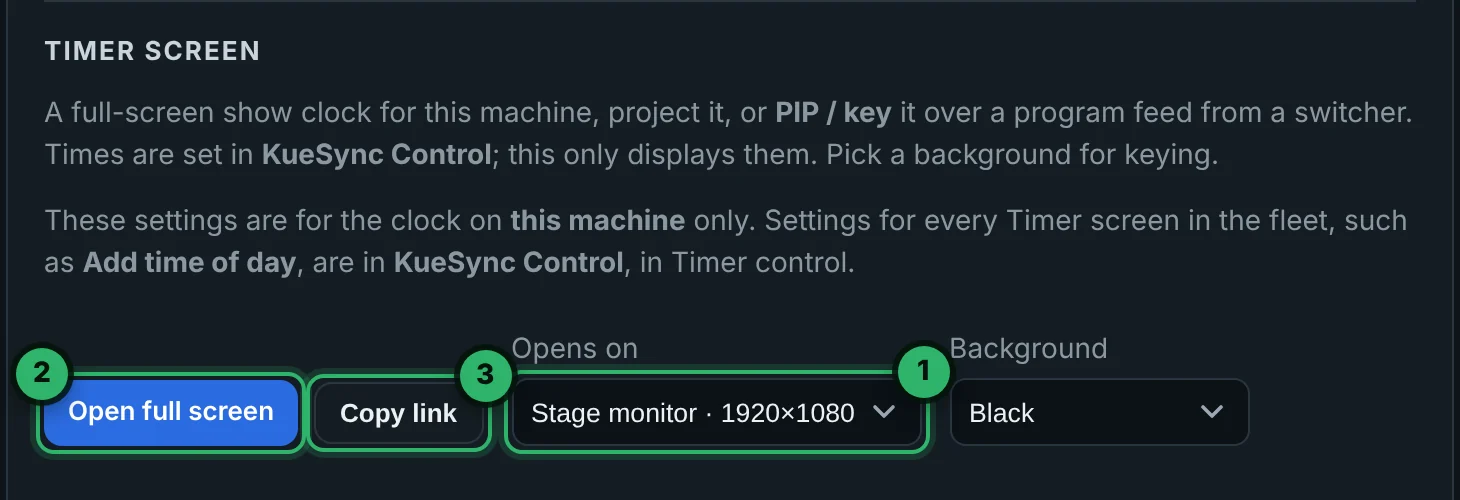
- 1Set Opens on to the display.
- 2Click Open full screen. After that, Open Timer… in the KueSync menu opens it there.
- 3Copy link gives its address, for any browser on the show network.
For a screen on another machine in the fleet, use Settings › Displays › Screens on every machine on the Leader (Timer messages and Live notes).
2Open KueSync Control
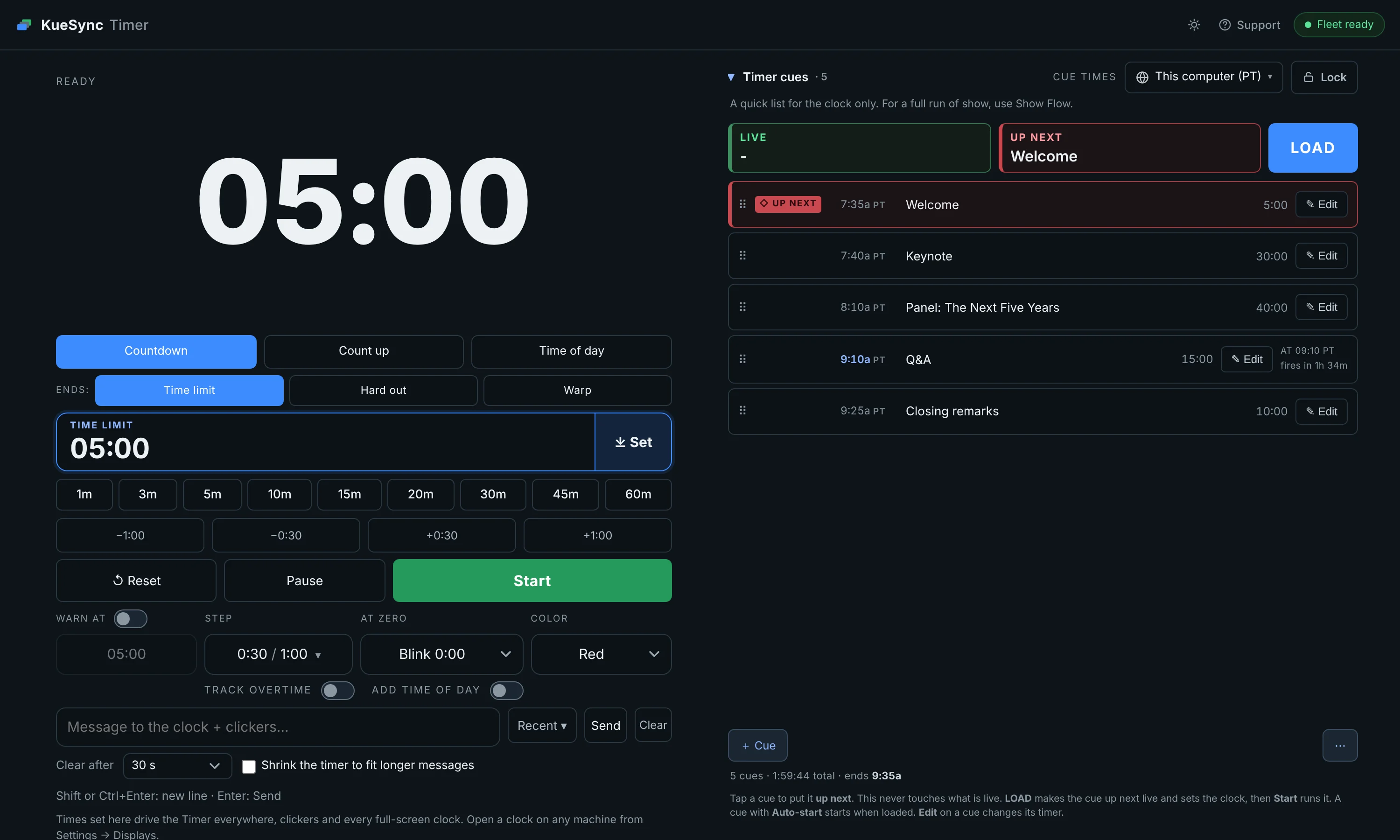
- Choose KueSync Control… in the KueSync menu. The Timer is under the clock.
- ⧉ Window on the Timer opens it in its own window. Make the window wide, or full screen, and Timer cues sit beside the Timer.
- In a narrower window, Timer cues are under the Timer. Tap ▸ Timer cues to open the list.
3The Timer on any device
On the show network. In Settings › Show control › KueSync Control, press Copy Fleet link and open it on the phone, iPad or computer. Enter the Control PIN. The Timer and Timer cues are on the page, and ⧉ Window opens the Timer on its own.
Over the internet. Turn on Internet access in Settings › Internet first (Remote crew and screens).
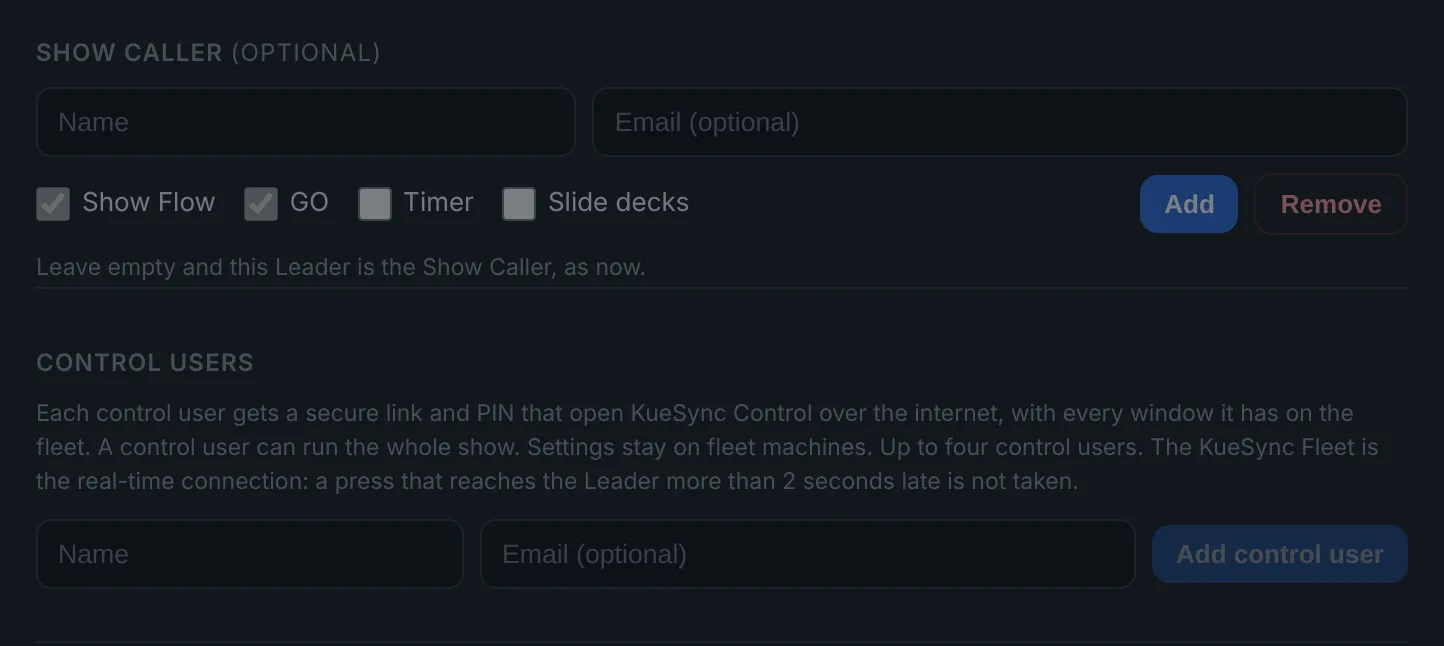
- A Control user gets all of KueSync Control over the internet, Timer cues included. Add one in Settings › Show control › Over the internet.
- The Show Caller, with Timer ticked, runs the Timer and Timer cues from anywhere.
- A screen that only needs the clock gets a Timer link, in Settings › Displays › Timer links. It shows the Timer full screen and can’t change anything.
- A new link and PIN are shown once. Copy them straight away.
4Build the list
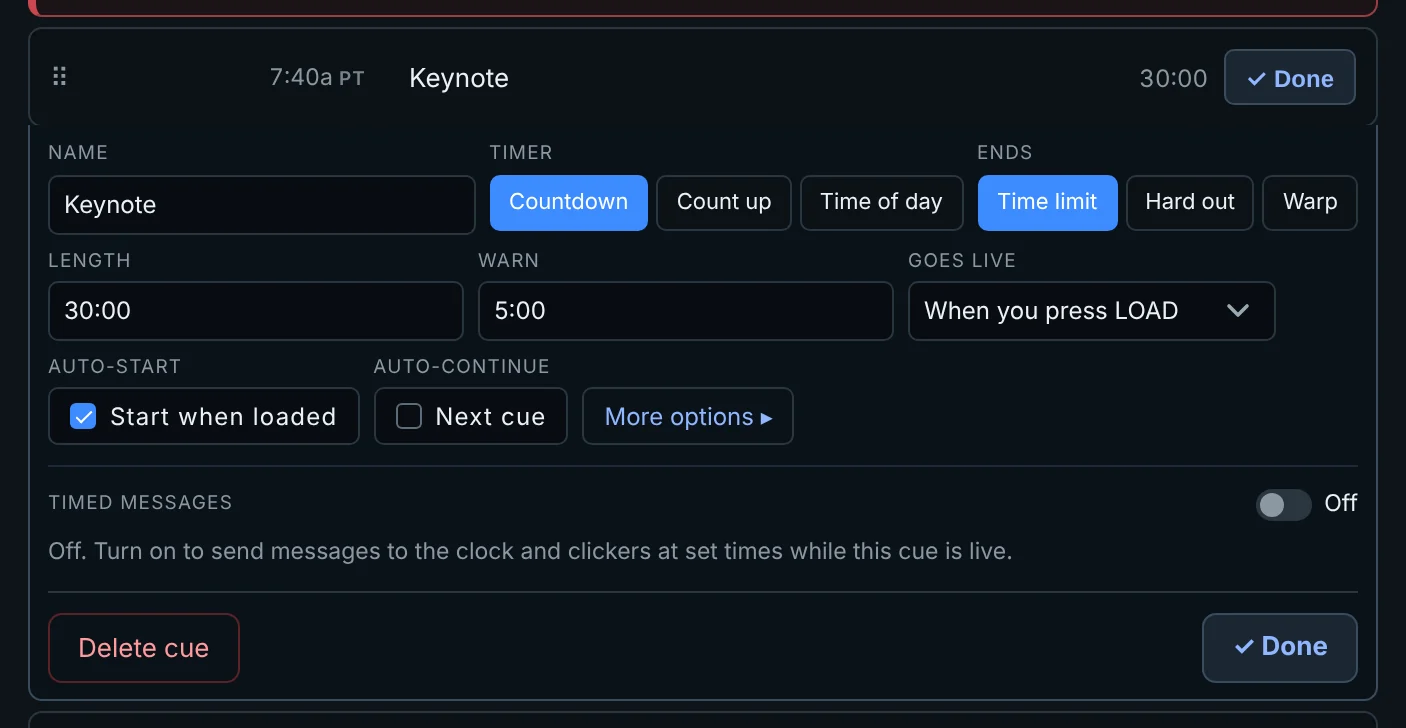
- + Cue adds a cue. Edit opens it and reads Done until you close it.
- TIMER is Countdown, Count up or Time of day. A countdown ENDS on its length, a Hard out or a Warp, as in Running the show clock.
- AUTO-START, Start when loaded, starts the clock when the cue is loaded. LOAD then reads LOAD & START.
- AUTO-CONTINUE, Next cue, loads and starts the next cue at 0:00.
- More options holds the rest of the Timer settings a cue can carry.
- Drag a cue by its handle to move it, with a mouse or a finger.
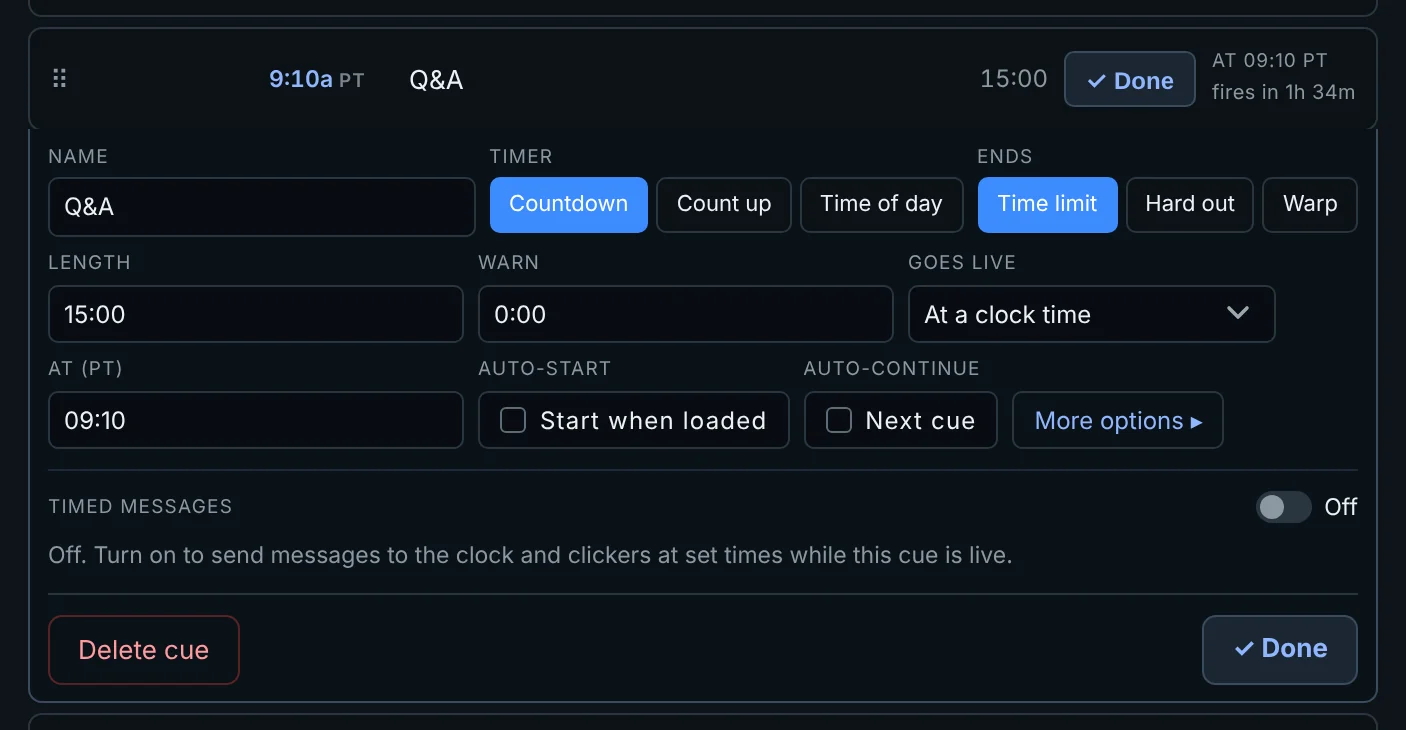
- GOES LIVE is When you press LOAD, At 0:00 of the cue before, or At a clock time.
- At a clock time, type the time in AT. The row shows it with its zone and says when it fires, for example fires in 1h 24m.
Cue times
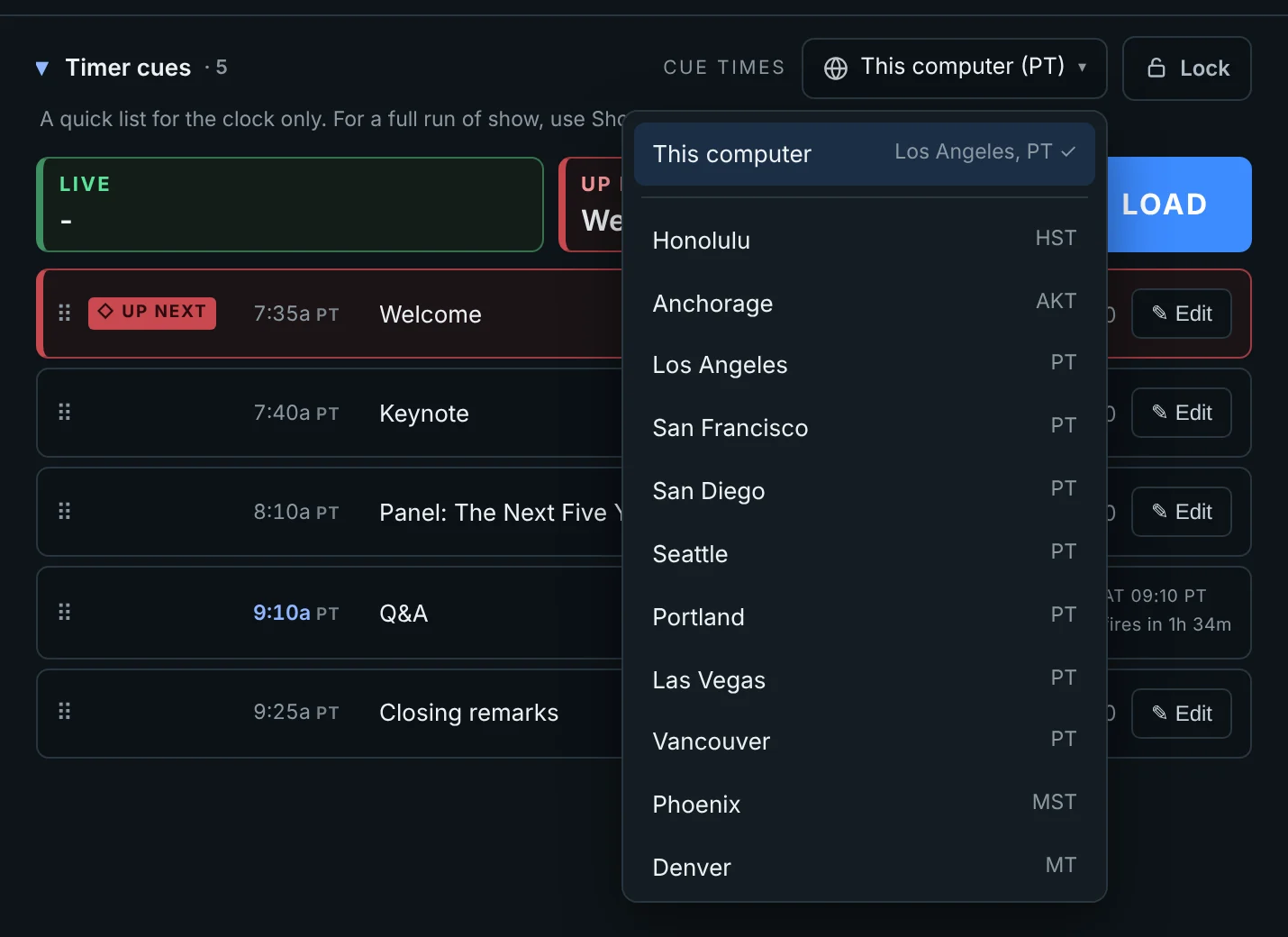
- CUE TIMES, beside Lock, is the time zone every time in the list is read in: AT, Hard out and the end time.
- This computer is the Leader’s own time zone, and the default.
- Pick a city when the show runs on another city’s time. A cue set for 8:00 pm with Boston chosen fires at 8:00 pm in Boston, wherever the Leader is.
- A Time of day cue can still show another city’s time on the clock. Its AT is read in Cue times, and it shows the time there too, for example = 1:15 pm Tokyo.
During the show
5Run it
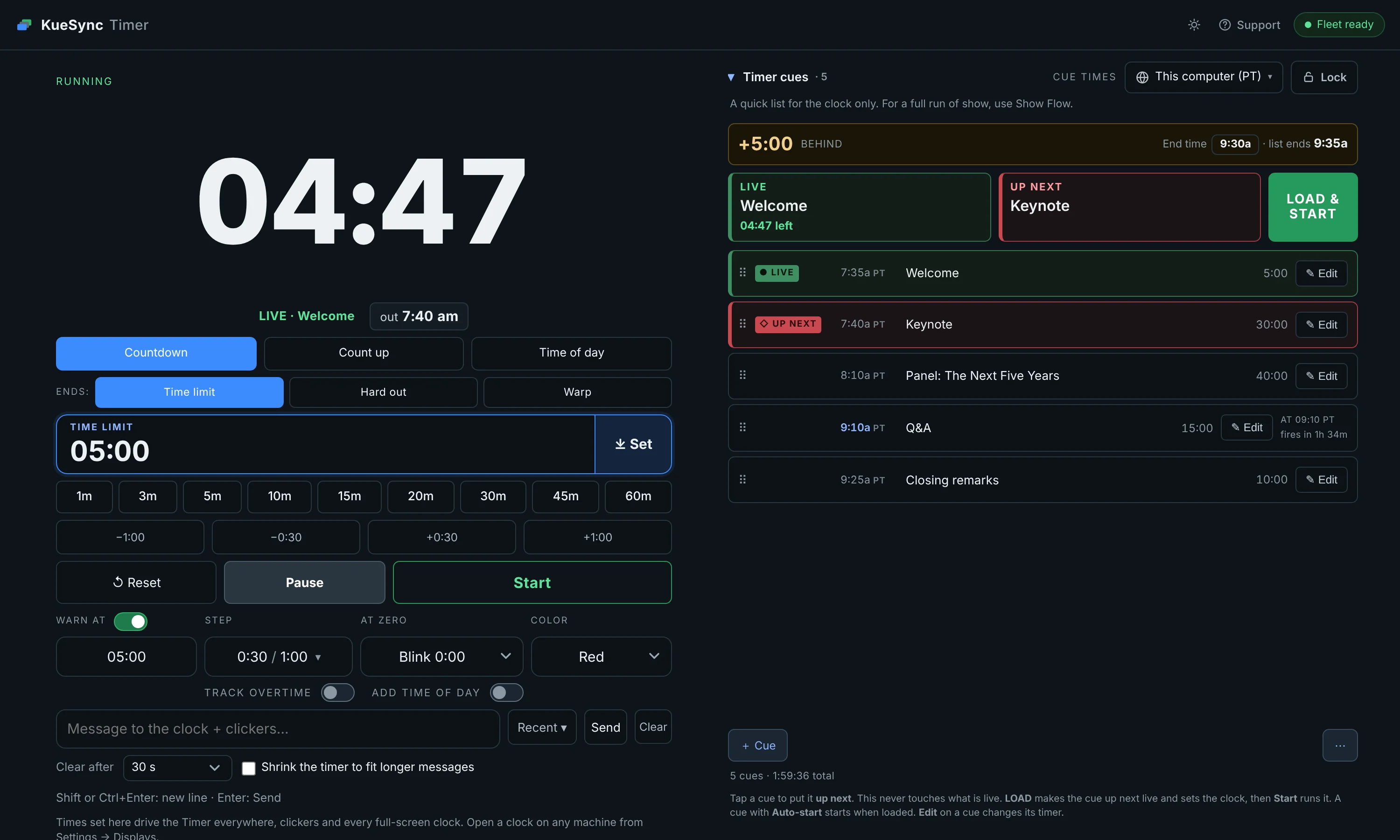
- Tap a cue to put it UP NEXT, in red. This never touches what is live.
- LOAD makes it LIVE, in green, and sets the clock. Then press Start. A cue with Auto-start starts as it loads.
- Under the clock, LIVE · and the cue’s name. The LIVE card shows the time left.
- Pause holds the clock. The Timer reads PAUSED and Start reads Resume.
- Set end time gives the list an end time, or give the last cue a hard out. The band then shows how far AHEAD or BEHIND the list is.
- Scroll the list to read ahead. Jump to live brings it back to the live cue.
- Lock hides editing on this screen. Tapping a cue and LOAD still work.
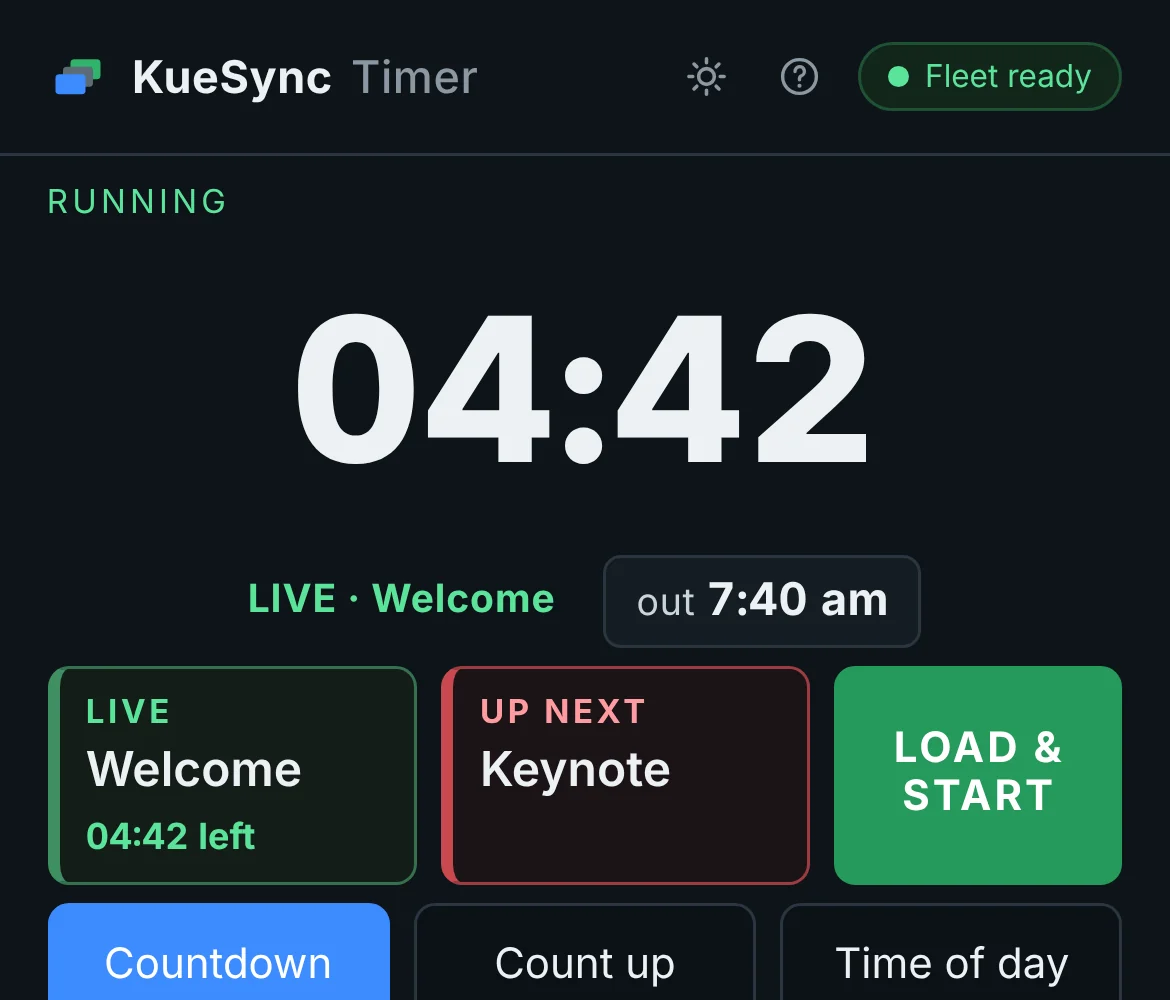
On a phone, the LIVE and UP NEXT cards and LOAD move up under the clock, so the show runs from the top of the screen. On an iPad held sideways, Timer cues sit beside the Timer.
In Companion, Timer cues: LOAD runs the same LOAD. The preset reads LOAD & START, in green, when the cue up next has Auto-start.
Troubleshooting
| What you see | Fix |
|---|---|
| A cue set to a clock time didn’t go live | Check Cue times. The time is read in that zone, and This computer is the Leader’s own. The row says when it fires. |
| LOAD set the clock but it didn’t run | Press Start, or turn on Start when loaded in the cue. |
| There are no Edit buttons | Lock is on. Press Locked to unlock. |
| There is no ahead or behind | Set an end time, or give the last cue a hard out. |
| The list doesn’t follow the live cue | It was scrolled by hand. Press Jump to live. |
| A remote link asks for a PIN you don’t have | A PIN is shown only once. Make a new link and remove the old one. |