Timer messages and Live notes
Put the Timer on a screen, send it messages, choose how long they stay up, and move to Live notes when you need more room. The green numbers in each picture match the steps beside it.
1Put the Timer on a screen
Pick the screen. Times are always set from KueSync Control; every Timer screen shows the same clock.
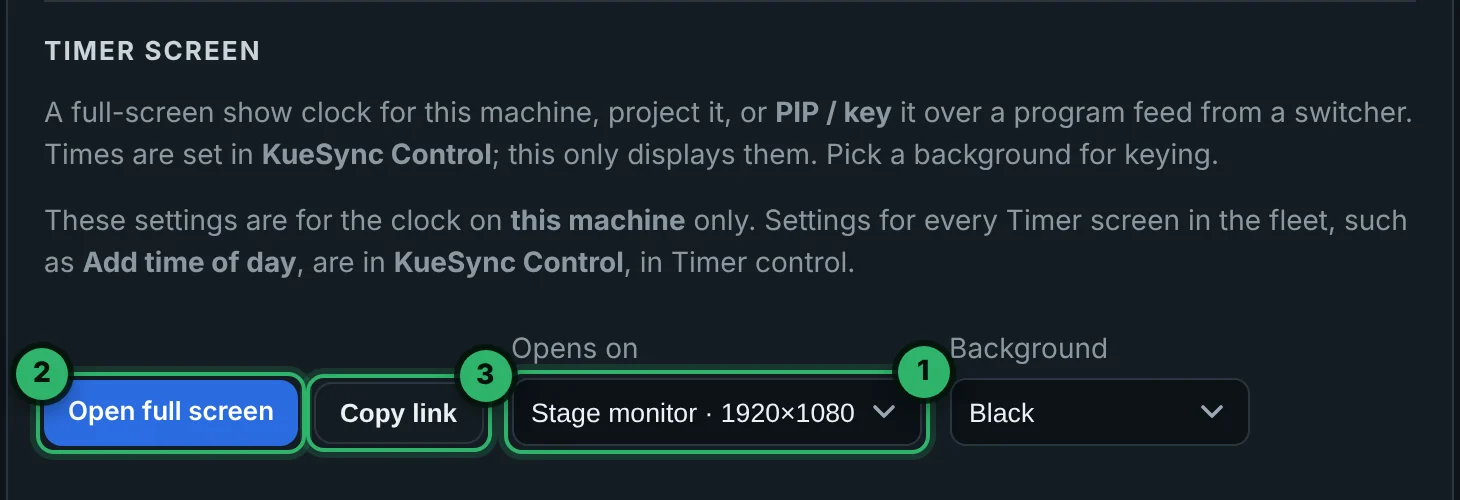
An external display or projector
Settings › Displays › Timer screen
- 1Opens on: choose the display.
- 2Open full screen. From then on, Open Timer in the KueSync menu opens it there too.
- 3Copy link gives its address for any browser on the show network.
A confidence monitor on a follower
On the Leader: Settings › Displays › Screens on every machine
- 1On that machine's Timer row, choose its display.
- 2Open full screen. Its KueSync menu bar or tray app opens it within a few seconds.
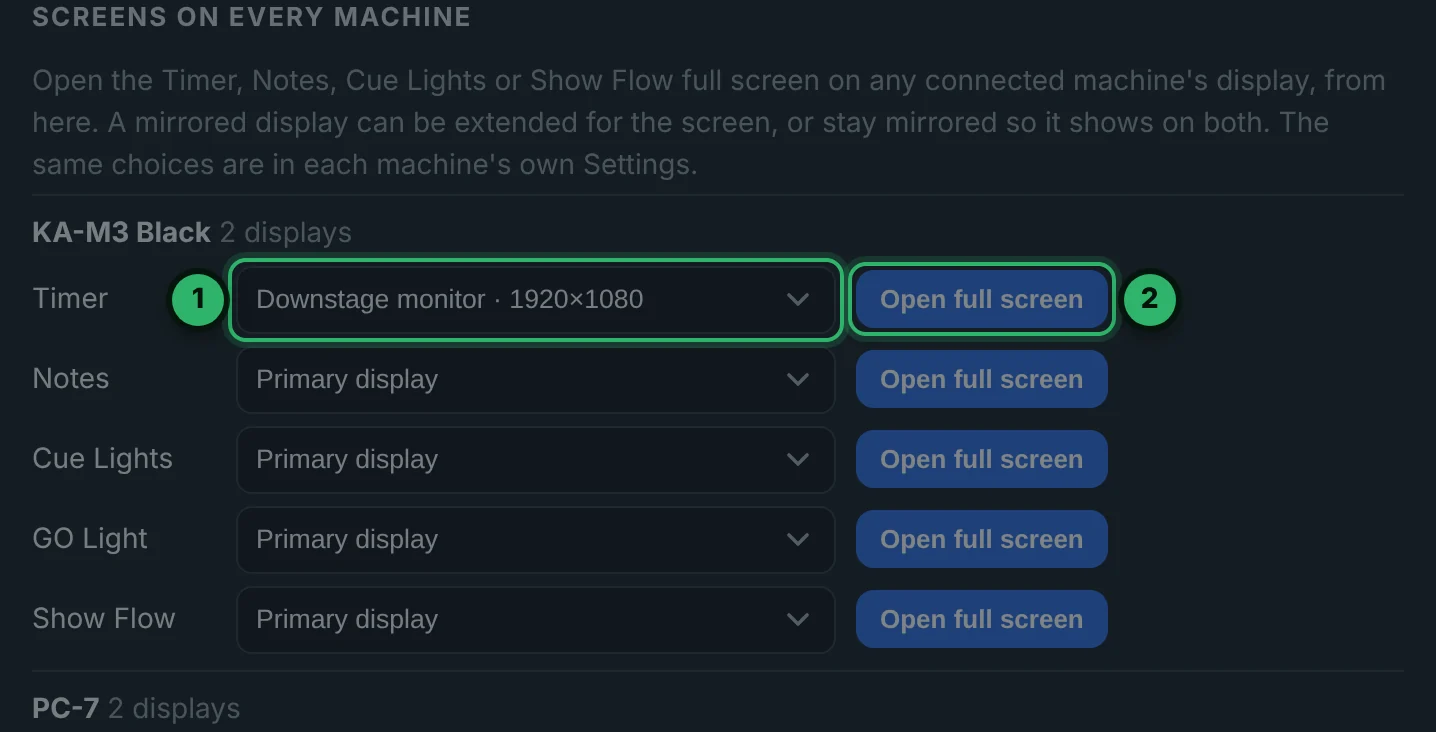
A machine that only ever shows a screen: turn on Dedicated full-screen display on it, so a deck launch never lands there.
A Timer link
Settings › Displays › Timer links (with Internet access on)
- 1Name it, and add an email to send it.
- 2Create internet Timer link. Open it on the screen and enter its PIN, or enter its pair code at kuesync.com/pair.

2Send a message
In KueSync Control, under the Timer.
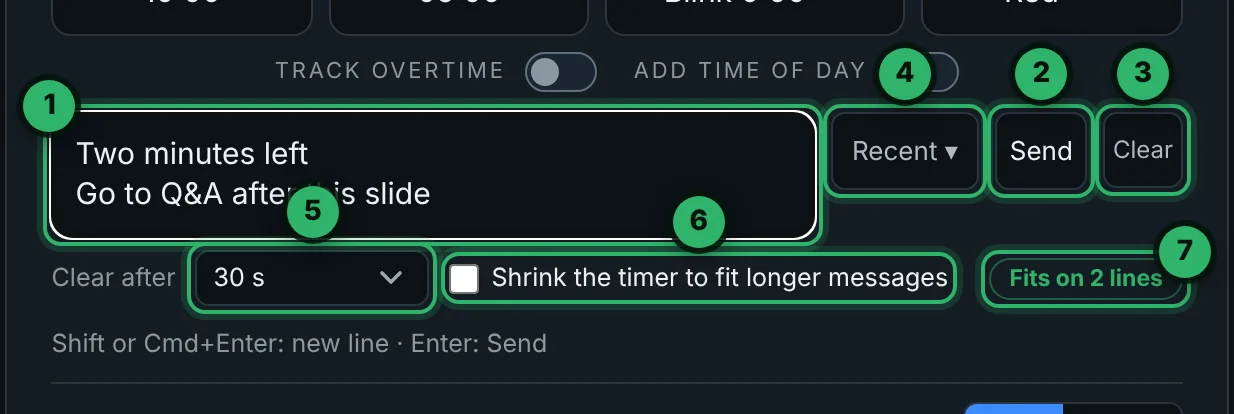
- 1Type the message. Shift+Enter or Cmd+Enter (Ctrl+Enter on a PC) starts a new line, up to three.
- 2Send (or Enter) puts it on every Timer screen and clicker.
- 3Clear takes it down now.
- 4Recent: the messages sent during the show. Click one to put it back in the box, then press Send.
- 5Clear after: how long it stays up (step 3).
- 6Shrink the timer to fit longer messages (off by default).
- 7The chip shows how the message will fit before you send it.
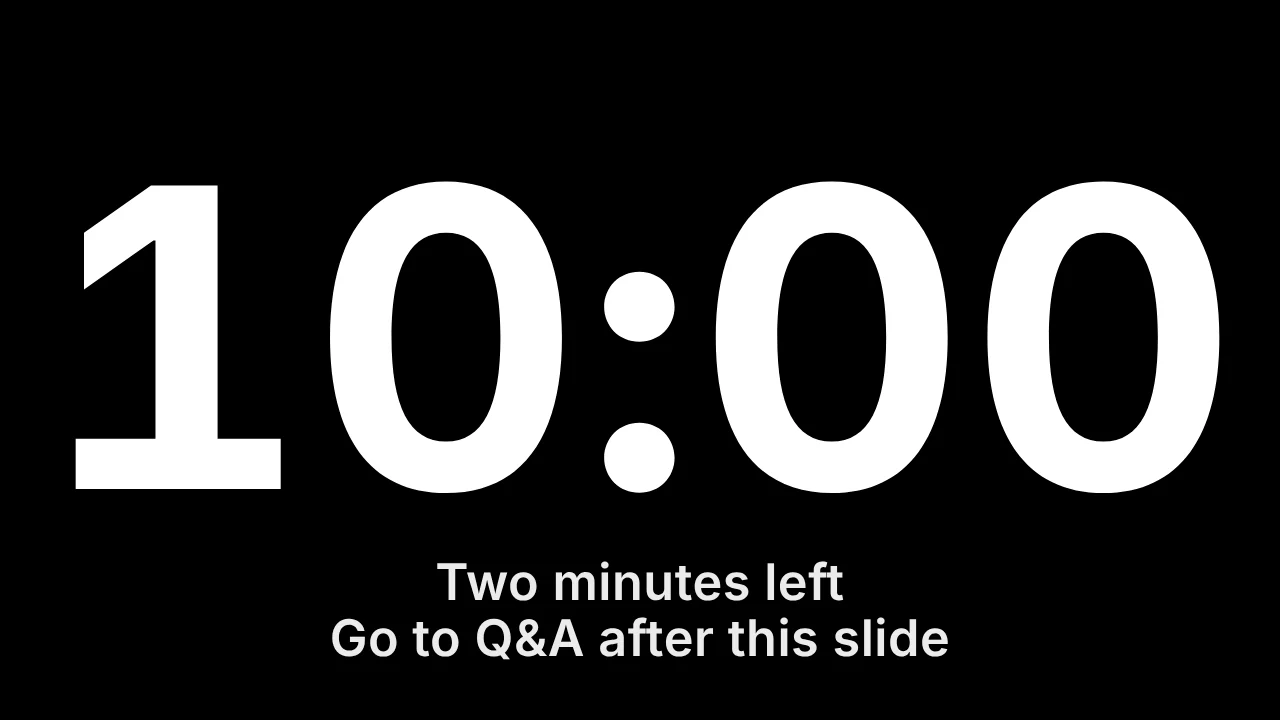
The message also shows under the clock at the top of the Timer in KueSync Control, as it reads on the Timer screens, so you always see what is up.
On the Timer screen
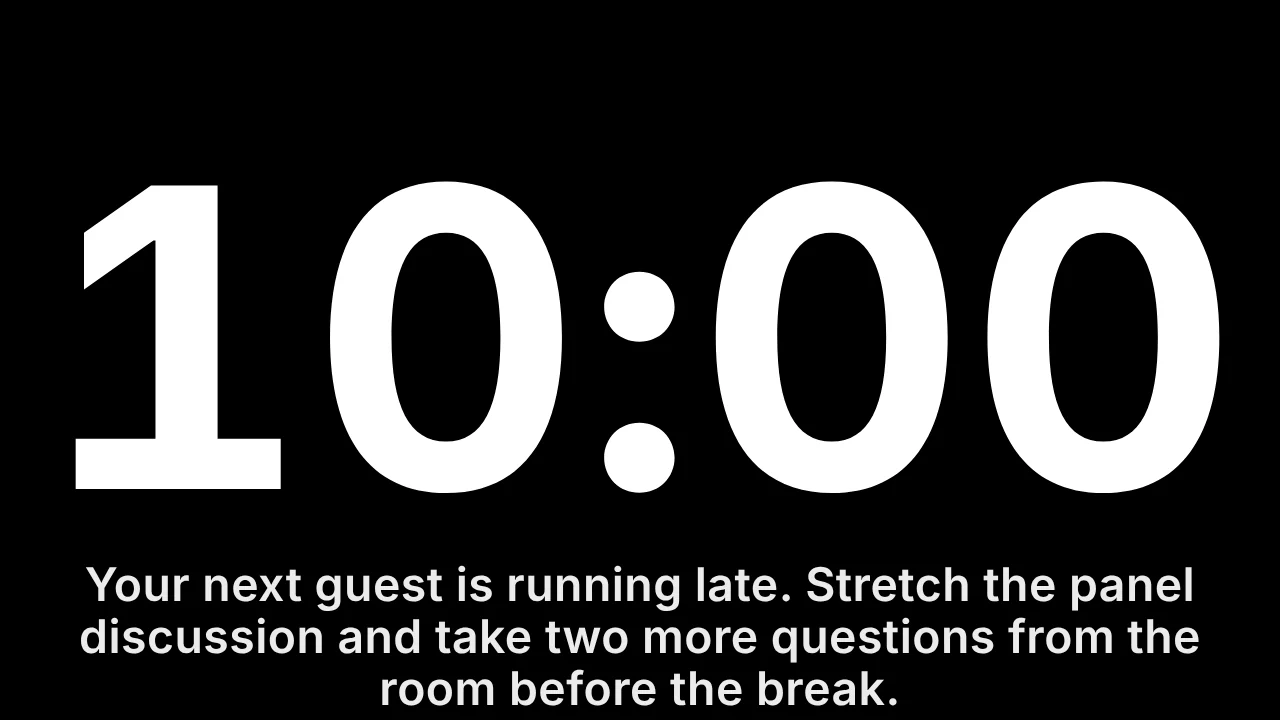
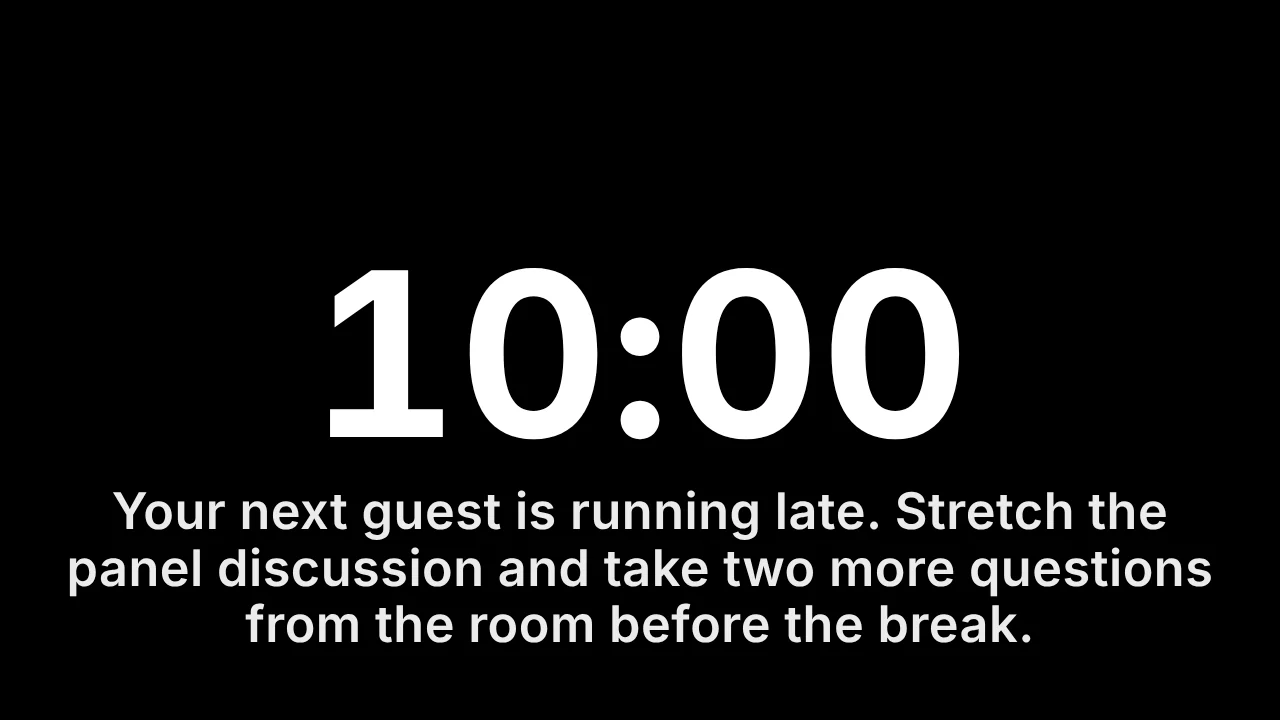
3How long it stays up
Clear after, beside the message box: 10 s, 30 s, 1 min, 2 min, 5 min or Until cleared. With Until cleared, the message stays until you press Clear or send another. The choice is shared by every operator and kept for the next show. It starts at 30 s.
4Need more room? Use Live notes
Timer messages are for short lines. When you need more than three lines, or text the speaker can scroll, type it as a live note on a Notes screen. Set it up once:
Step 1Make the Leader the Notes source
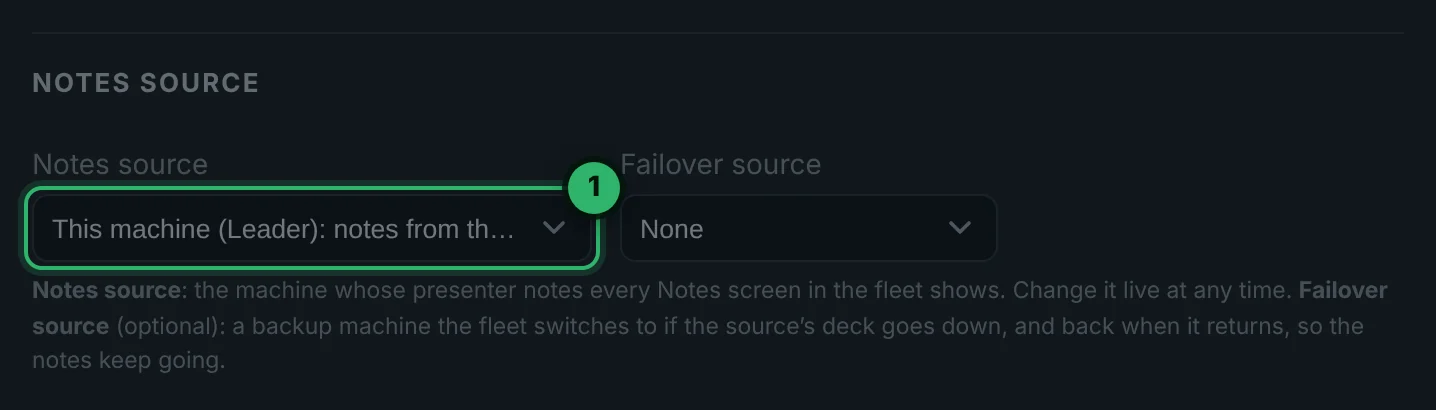
Settings › Fleet › Notes source
- 1Choose This machine (Leader).
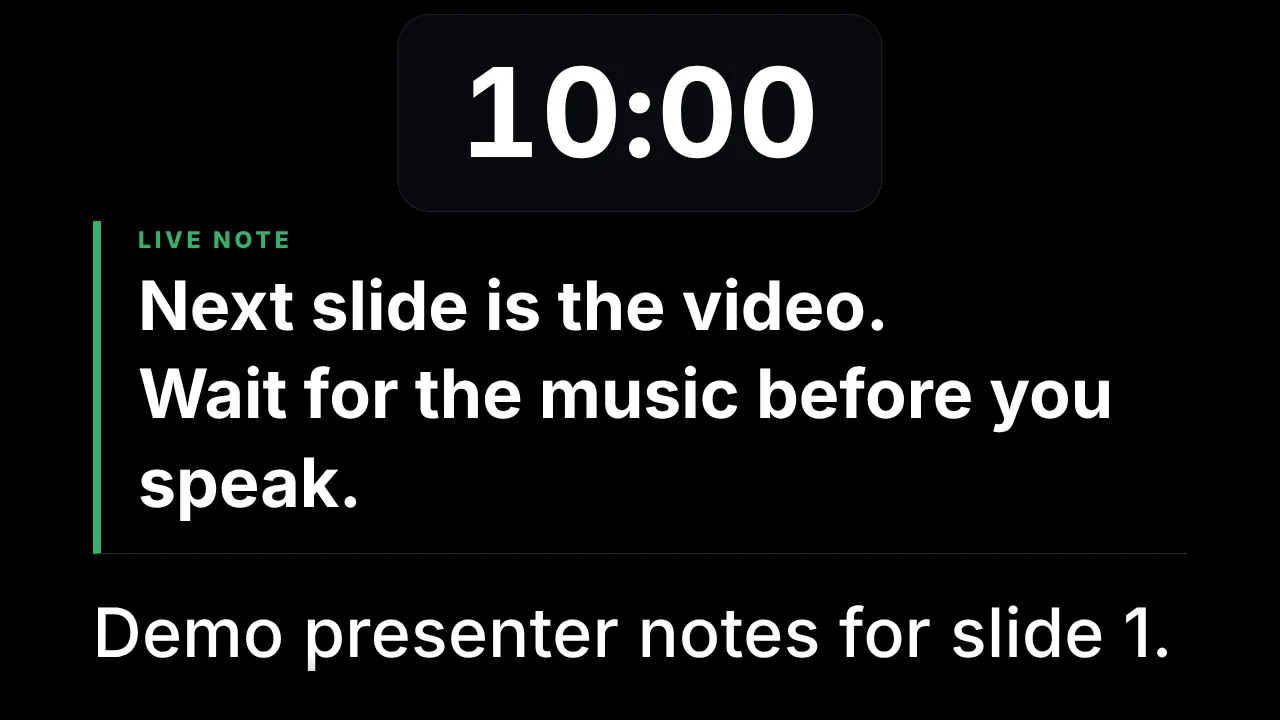
With no deck open on the Notes source, every Notes screen shows only the Timer and your live notes. When a deck opens there, its slide notes come back under the live note.
Step 2A big Timer on the Notes screen
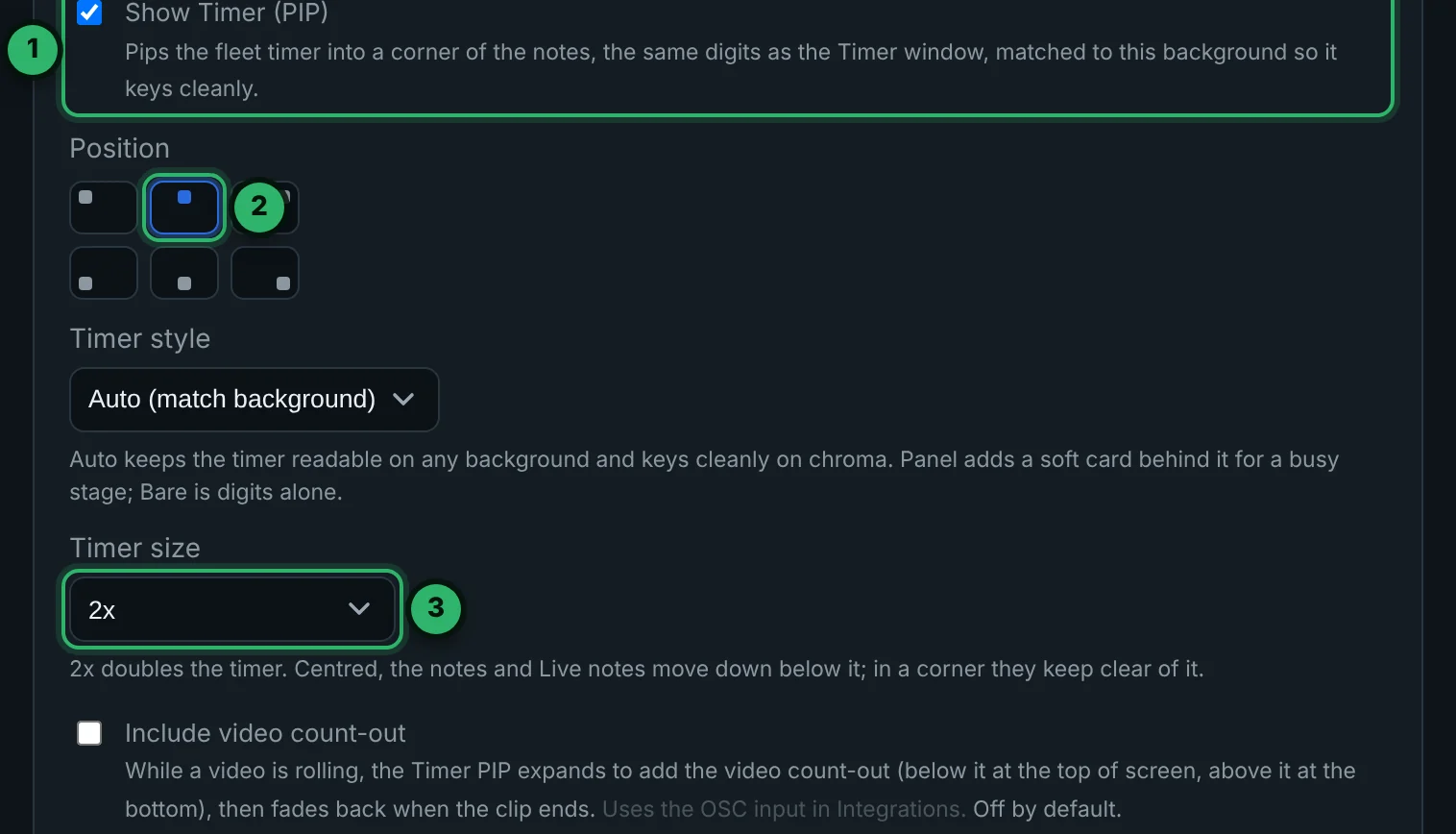
Settings › Displays › Notes, on each machine that shows Notes
- 1Show Timer (PIP) on.
- 2Position: top, centre.
- 3Timer size: 2x. The notes start below it.
Step 3Open a Notes screen
Exactly as for the Timer in step 1: Settings › Displays › Notes and Opens on for a display on this machine, Screens on every machine for a fleet machine, or Notes links for a screen with internet.
Step 4Type live notes
In KueSync Control, Teleprompter controls:
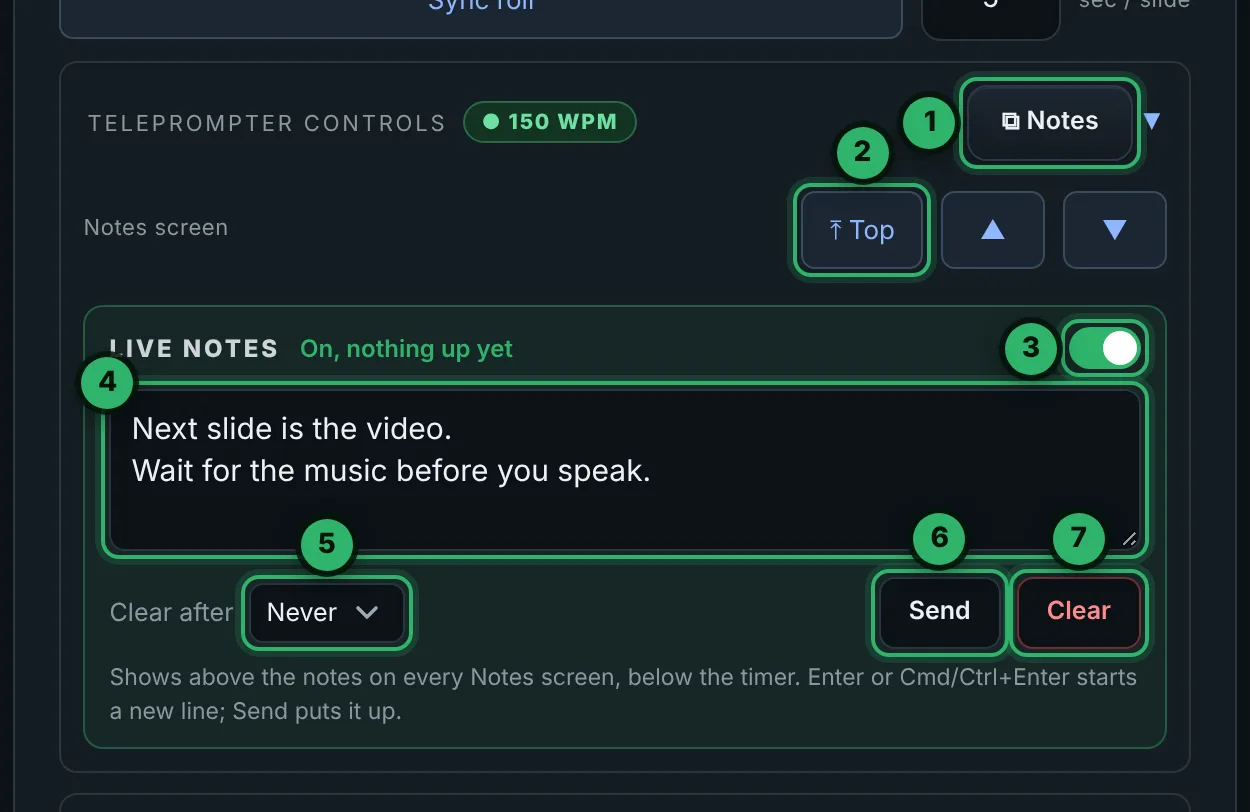
- 1Notes opens the Notes pop-out (below).
- 2Top, ▲ and ▼ scroll the Notes screen. Hold an arrow to keep scrolling.
- 3Live notes on.
- 4Type the note. Enter or Cmd/Ctrl+Enter starts a new line.
- 5Clear after: 10 s to 5 min, or Never (the default).
- 6Send puts it on every Notes screen. Nothing goes up until you press it.
- 7Clear takes it down. Live notes off also takes it down.
The Notes pop-out has the same Live notes box, a live preview of the Notes screen, and auto-scroll:
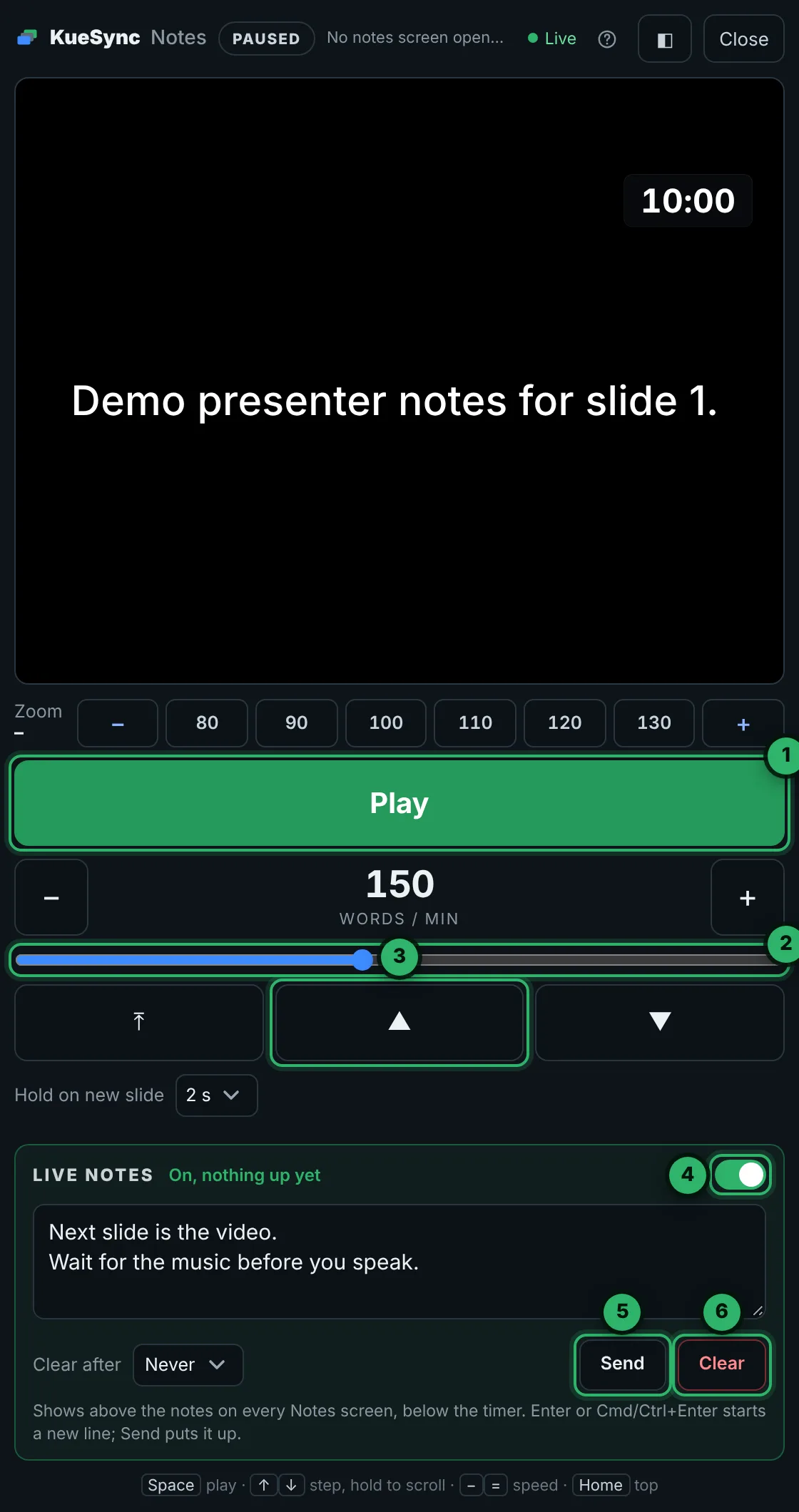
- 1Play scrolls the notes by itself; press again to pause.
- 2Speed in words per minute, while it runs.
- 3Step with the arrows; hold to keep scrolling.
- 4Live notes on or off.
- 5Send the note.
- 6Clear it.
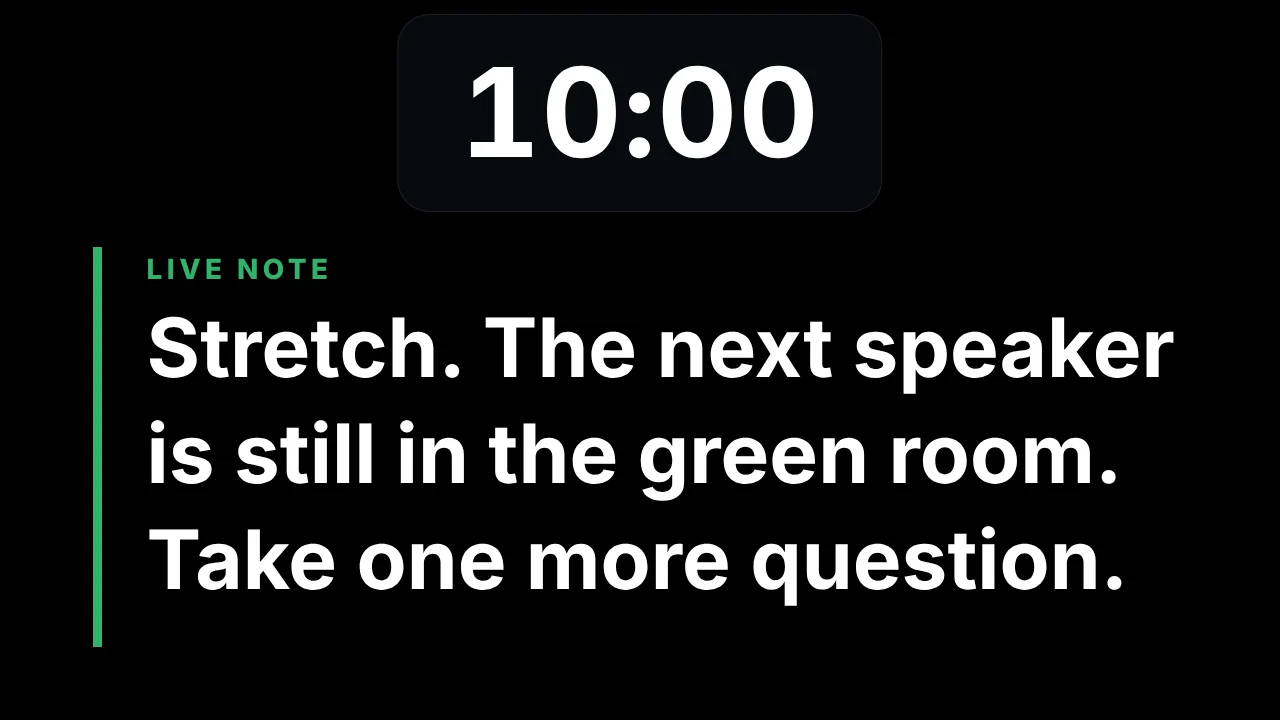
On the Notes screen
5Keys and Companion
| Do this | Key or button |
|---|---|
| New line in a Timer message | Shift+Enter or Cmd/Ctrl+Enter (up to three lines) |
| Send a Timer message | Enter or Send |
| New line in a live note | Enter or Cmd/Ctrl+Enter |
| Send a live note | The Send button (no key puts it up) |
| Notes pop-out: play or pause, step, speed, top | Space, ↑ ↓ (hold to scroll), − =, Home |
Companion (set up): Timer: Send on-screen message, Timer: Messages clear after, Timer: Shrink the timer to fit longer messages, Notes: Live notes on / off / toggle, Notes: Show a live note (type \n for a new line) and Notes: Clear the live note, with presets SHRINK TIMER, LIVE NOTES and CLEAR LIVE NOTE.