PowerPoint on every machine from one QLab GO
QLab can advance PowerPoint on several computers at once. KueSync runs on each graphics machine and keeps them on the same slide, and a GO in QLab moves them all. It needs no AppleScript and no Companion.
1What you need
- KueSync on each graphics machine, with one machine as the Leader (Load-in to first slide).
- The deck in KueSync Files, launched on the machines that show it (Running the decks).
- QLab on the Leader, or on any Mac on the show network. Follow QLab needs QLab 5.3 or later. Network cues work with any version.
QLab is the cue list and KueSync is what moves the slides. Nothing is installed in QLab and the workspace is not changed.
2Turn on QLab control
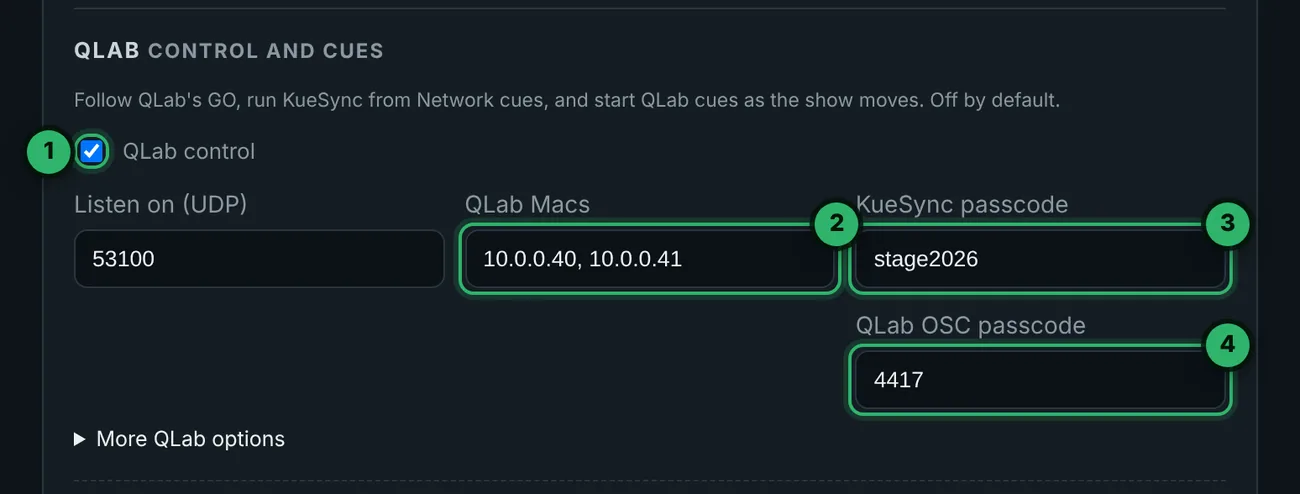
- 1Turn on QLab control on the Leader, in Settings › Integrations › QLab. It is off by default.
- 2QLab Macs holds the address of every Mac running QLab. Leave it blank when QLab runs on the Leader.
- 3The KueSync passcode goes last in each Network cue message. A QLab on another Mac needs it. Use 8 or more letters and numbers.
- 4The QLab OSC passcode is the 4 digits from QLab’s Workspace Settings › Network › OSC Access. Follow QLab needs View access.
3Map QLab cues to slides
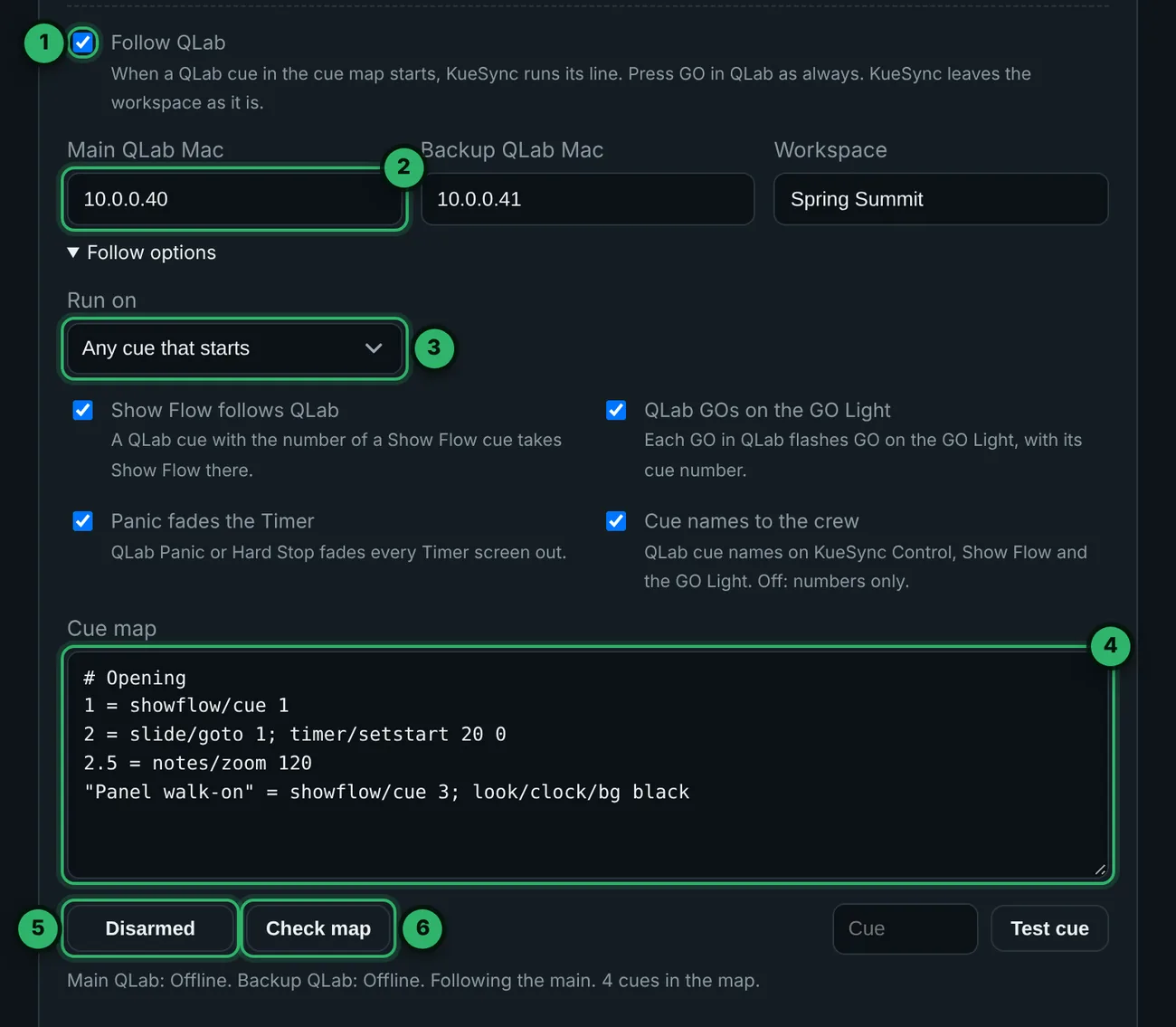
- 1Turn on Follow QLab.
- 2Set the Main QLab Mac (blank when QLab runs on the Leader), a Backup QLab Mac if you run one, and the Workspace name when more than one is open.
- 3Run on is Any cue that starts or GO button only.
- 4The Cue map, one line per QLab cue.
- 5Armed or Disarmed.
- 6Check map shows the QLab name for each cue number.
KueSync connects to the workspace and hears every cue as it starts. The cue map says what each QLab cue does to the slides. Each line is the QLab cue number, then =, then the command.
| Cue map line | What it does |
|---|---|
10 = slide/next | When QLab cue 10 starts, PowerPoint advances on every machine. |
12 = slide/goto 1 | Every machine goes to slide 1. |
20 = deck/launch 3 | Launches numbered show 3 from KueSync Files on every machine. |
30 = slide/next "1,3" | Only machines 1 and 3 advance. |
"Walk-on" = slide/goto 1; timer/setstart 20 0 | A cue by its name: slide 1 on every machine, and a 20 minute Timer starts. |
4Arm it
Follow QLab starts Disarmed, so nothing moves while you build the map. The activity log shows what would have run. To try a line, type its cue number and press Test cue. When you are ready, press Disarmed and it changes to ARMED.
5Or put it in the cue stack
To keep the slide changes in the cue list itself, use a Network cue. In QLab, add a patch under Workspace Settings › Network: OSC, Network UDP, the Leader’s address, port 53100. Then add a Network cue on that patch with one of these messages. The KueSync passcode goes last.
| Message | What it does |
|---|---|
/kuesync/slide/next stage2026 | Every machine goes to the next slide. |
/kuesync/slide/prev stage2026 | Every machine goes back one. |
/kuesync/slide/goto 12 stage2026 | Every machine goes to slide 12. |
6Main and backup graphics machines
Every machine in the fleet takes the same cue at the same moment, so the backup is on the same slide as the main. Macs and PCs work in one fleet. For a main and a backup QLab Mac, and for backup Leaders, see Main and backup in the full guide.
Troubleshooting
| What you see | Fix |
|---|---|
| QLab fires and the slides do not move | Follow QLab is Disarmed, or the cue number is not in the cue map. The activity log shows what would have run. |
| Main QLab: Offline | KueSync cannot reach QLab. Check the address, that QLab is open, and the network. |
| A Network cue does nothing | The QLab Mac is not in QLab Macs, the passcode is not last, or the patch is not UDP to port 53100. |
| One machine does not advance | Check that the show is running on that machine (Running the decks). |