Getting files onto every machine
KueSync Files gives every machine in the show its own local copy of the show files. Use it in place of USB sticks or a cloud folder to move presentation files between show computers. It copies over the show network only and uses no cloud service or network share.
Before doors
1Open KueSync Files
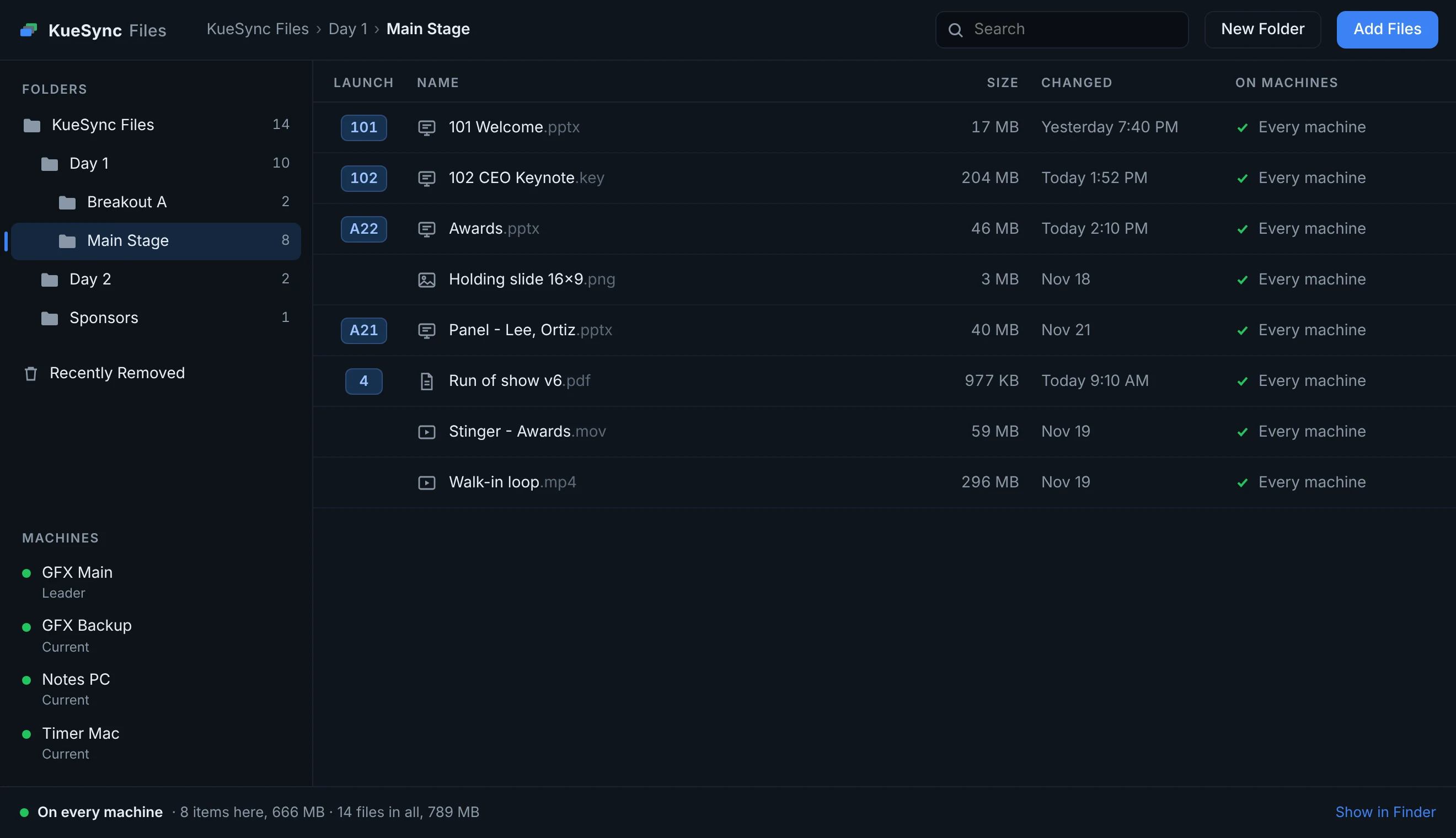
It is on by default. Open the window from KueSync menu › Open KueSync Files, from KueSync Files at the right of Slide decks in KueSync Control, or from Settings › KueSync Files. It works the same on the Leader and on every follower.
On every machine the files live in a real folder named KueSync Files in your home folder. Show in Finder at the bottom of the window (Show in File Explorer on Windows) opens it. You can work in Finder or File Explorer as well as in the window.
The switch is KueSync menu › Keep Files on Every Machine. Turning it off asks you first, so a slip while reaching for Open KueSync Files leaves the show alone.
2Load the show from any machine
Press Add Files, or drag decks, videos and graphics into the window, on any machine in the fleet. Every machine gets its own copy within seconds. On machines shows a file still on its way, and the line at the bottom reads On every machine when the copy is done. A file added in the window never replaces one with the same name. It is added beside it as Name 2.
- In Finder or File Explorer, dragging from the same drive moves the file. Hold Option (Mac) or Ctrl (Windows) while dragging to keep the original where it is. Add Files always copies.
- Each machine’s copy is a real local file, so open and present straight from its KueSync Files folder.
- With Move files during a show on (the default, in the Leader’s KueSync Files settings), files copy between cues while a deck plays and pause around every advance. Turn it off and files copy only when no deck is playing.
- Keep your masters somewhere else. KueSync Files is for getting content onto machines, not for storage. A machine’s KueSync Files folder is emptied when it leaves the fleet.
3Launch IDs
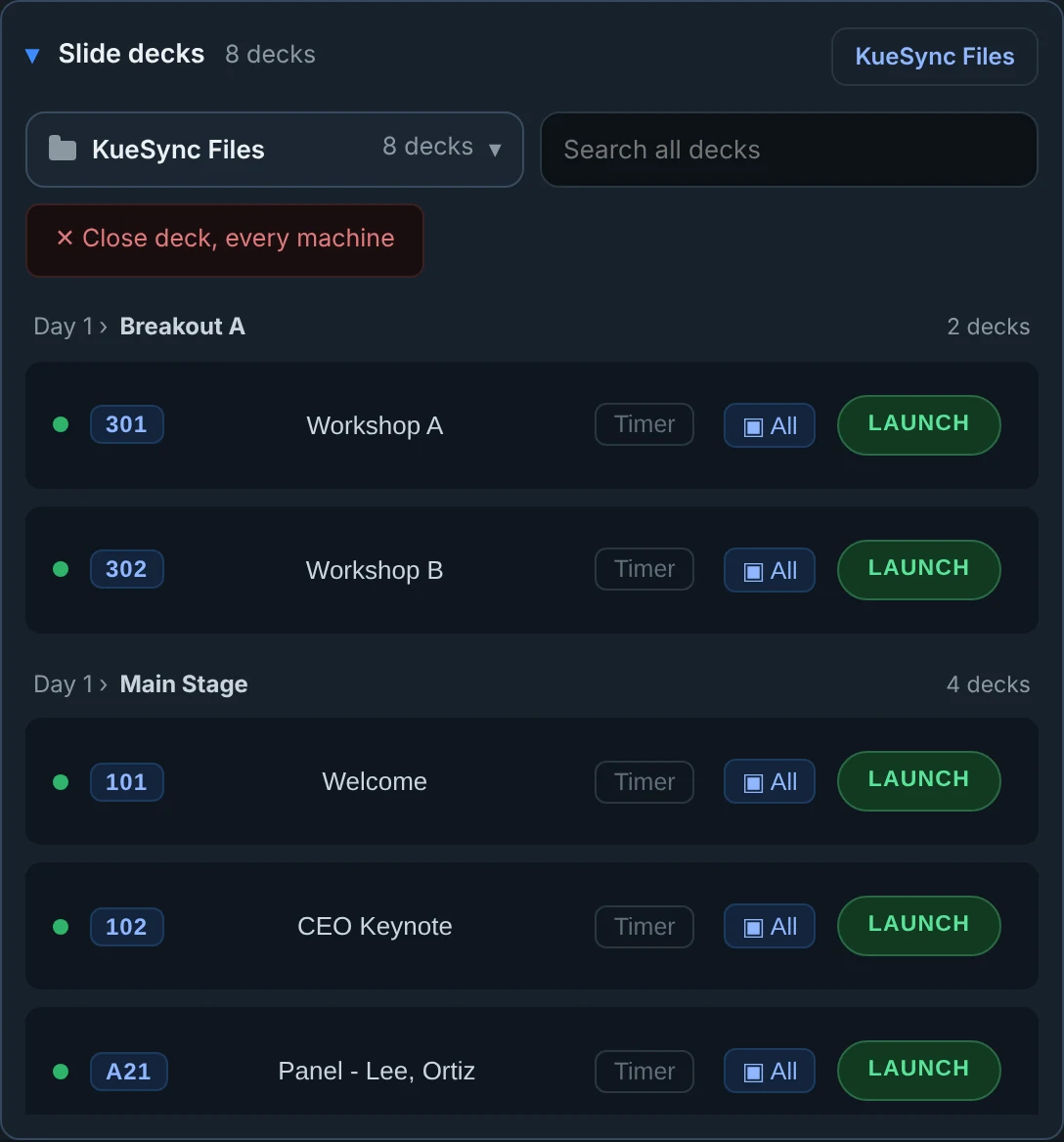
Every PowerPoint, Keynote and PDF deck in KueSync Files gets a launch ID. It shows in the Launch column of the window and on the deck’s row in KueSync Control, and it is how QLab, Companion, Stream Deck and Show Flow launch the deck.
A deck whose name starts with a number keeps that number, so 101 Welcome.pptx is 101. A deck with no number in its name gets the next free number.
Choose a folder at the top of Slide decks to see only its decks, or KueSync Files to see them all. How a launch picks machines, clickers and the timer is covered in Running the decks.
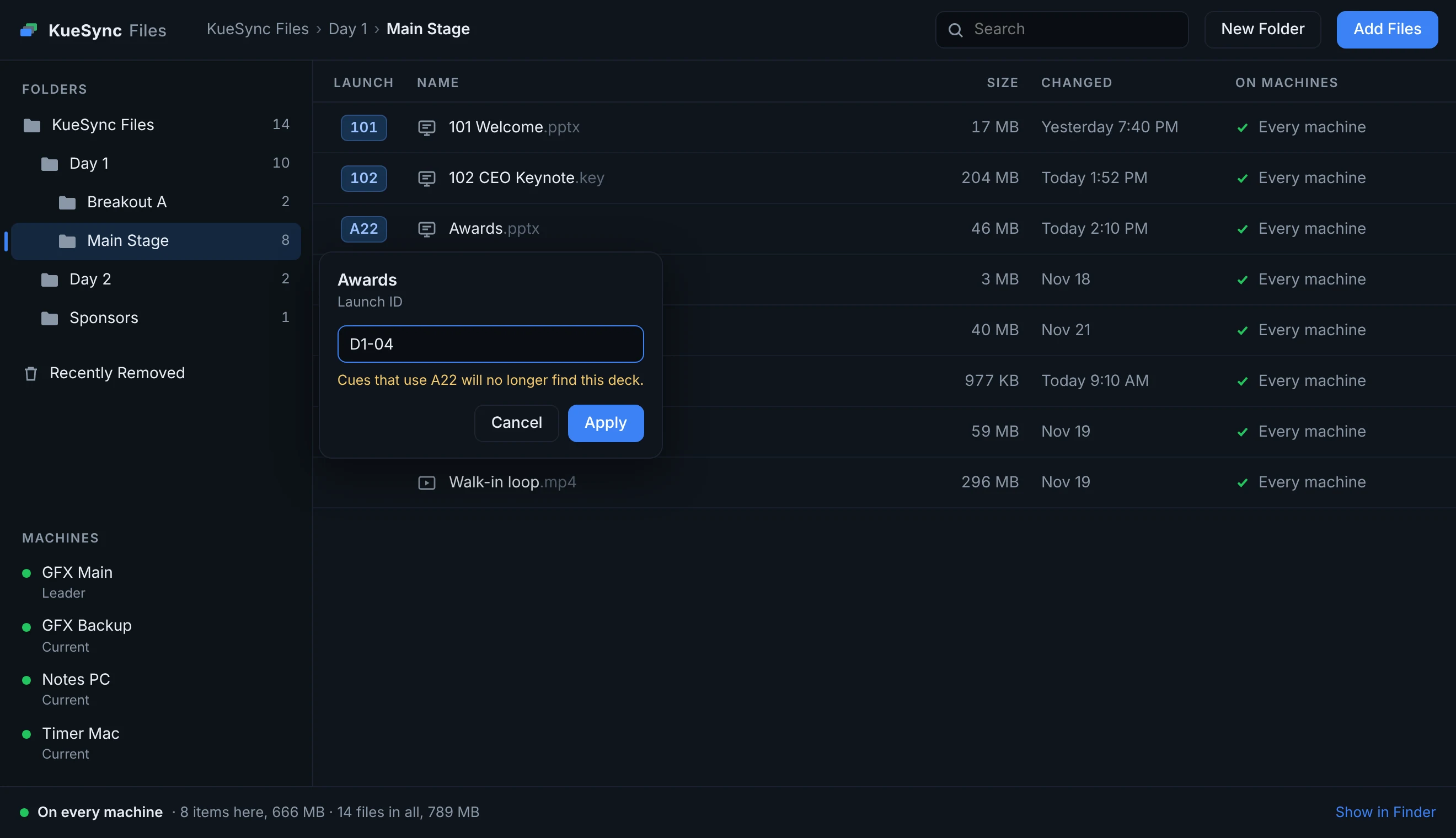
To change an ID, press it, in the window or in KueSync Control, type the new one and press Apply. An ID can be up to 24 letters and numbers, with dashes and dots, such as A21 or D1-03. Letter case does not matter.
An ID that cannot be used is refused, and the box says why: a space, a character like ; or /, or an ID another deck already has, with that deck’s name. When you change an ID, the box warns that cues using the old one will no longer find the deck.
A number that comes from the file name can only be changed by renaming the file.
Folders, and numbers in blocks
Organize KueSync Files in folders however you like, for example Day 1, Day 2, Breakouts and Video. KueSync reads every folder inside it.
- Give each day a block of numbers. Day 1 is 101 to 199 and Day 2 starts at 201. A deck added late takes the next free number in its block, and nothing else is renumbered. Give each room a block too, such as 301 for the Room A breakouts.
- One number, one deck. When two file names start with the same number, the one that comes first by folder and name (A to Z) launches. The other is dimmed and marked dup #, and its Launch does nothing.
- 006 and 6 are the same deck, so pick one style. Zero-padding (001, 002) keeps Finder and File Explorer in the same order as KueSync Control. Only the first four digits of a name are read, so 12345 Name.pptx is deck 1234.
- Names that start with a year are read as deck numbers. 2026 Budget review.pptx becomes deck 2026. If it is not a launch, put the year later in the name.
- To keep an old version, take its number off. A copy in an Old folder still counts, and can win the number if its folder sorts first.
4Organize from the window
New Folder makes a folder where you are. Select a file and press Rename (or Enter), or Move To… to pick a folder. You can also drag files onto a folder in the list or on the left. Search looks in every folder. Every change goes to every machine.
Drag the edge of the folder list to make it wider. The window remembers the width.
During the show
5A late change from a presenter
Save the new version over the old one in KueSync Files, on any machine. Now Playing in KueSync Control shows where the update came from, which machines are still receiving it, and which are still running the earlier copy.
Between segments, press Update copies. It relaunches only those machines from the new deck and brings them to the slide and build the change was made on. A machine with the deck open takes the new copy as soon as the deck closes there.
6Remove and put back
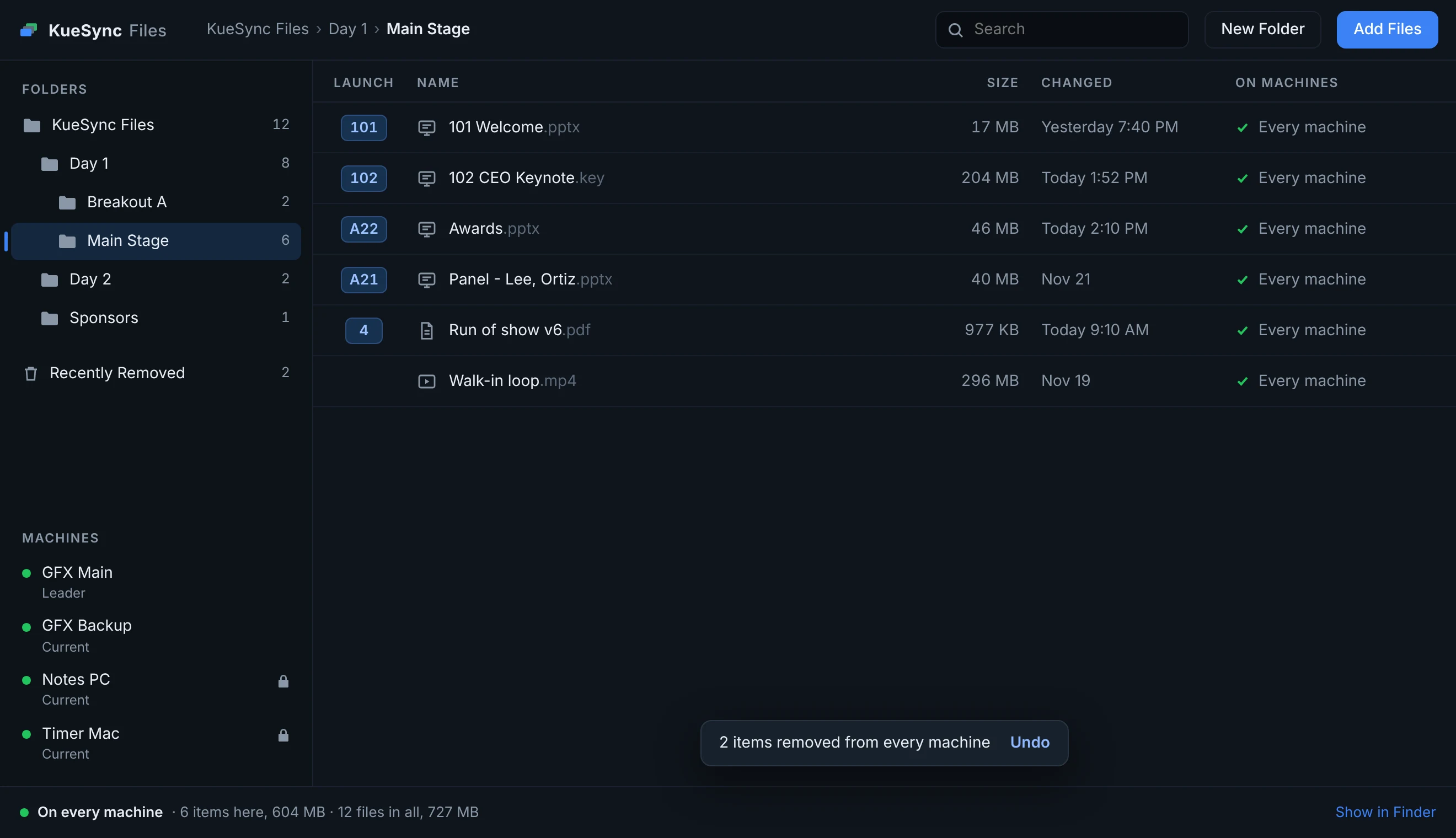
Select files and press Remove, or the Delete key. They come off every machine. Undo stays on screen for a few seconds and brings them straight back.
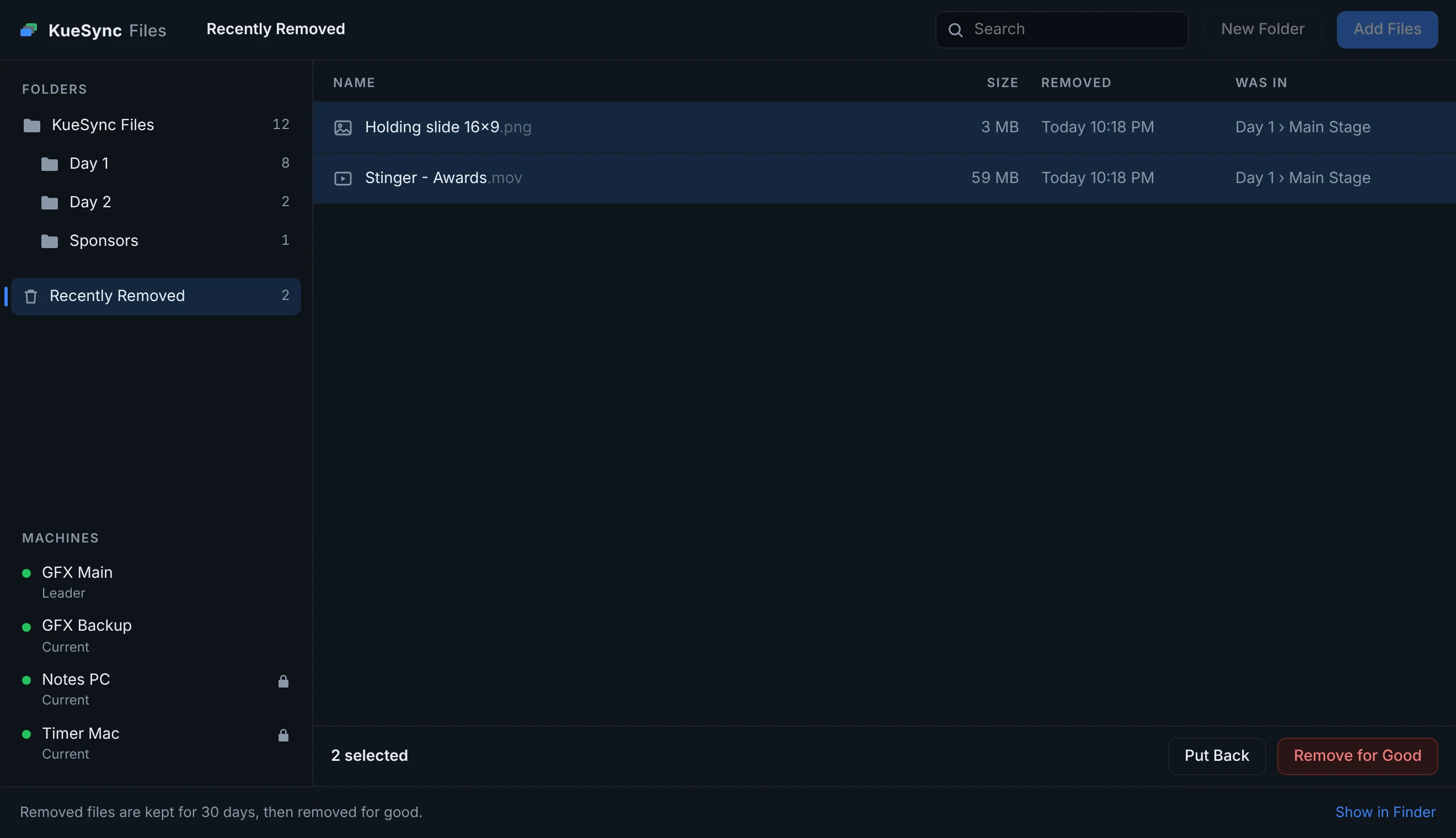
Removed files wait in Recently Removed for 30 days, on every machine. Select one and press Put Back, and it returns to its folder on every machine. Remove for Good asks first, then deletes it on every machine. It cannot be put back. After 30 days KueSync clears it by itself.
7What each machine can do
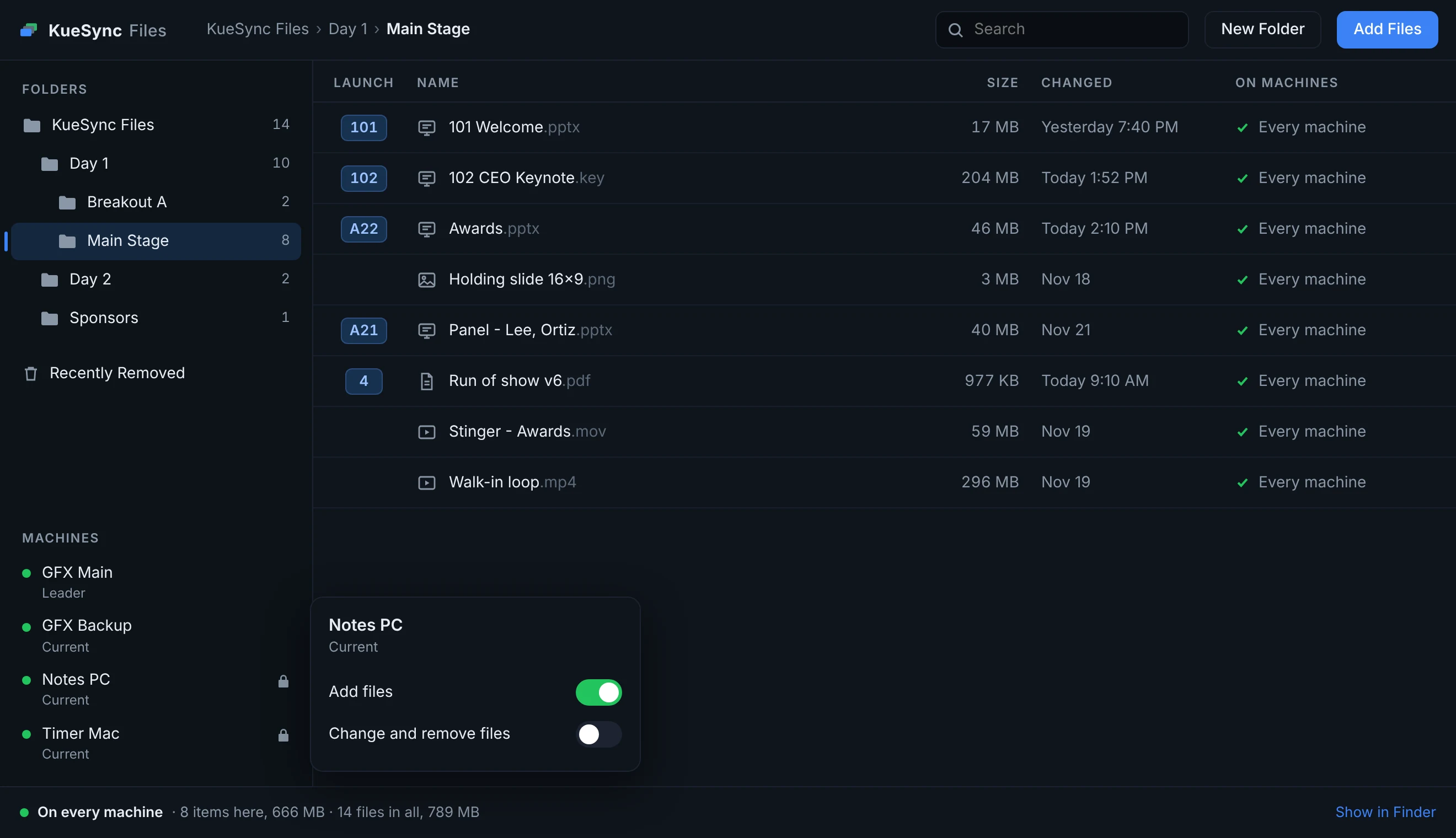
Every machine can add, change and remove files, until you say otherwise. On the Leader, press a machine in the Machines list of the window, or open Settings › KueSync Files › What each machine can do. Each machine has two switches, Add files and Change and remove files. Machines that join later sets them for machines added after.
A small lock marks a machine with a switch off. On that machine, the window dims what it cannot do and one line says why. A backup Leader that takes over keeps every switch as it was.
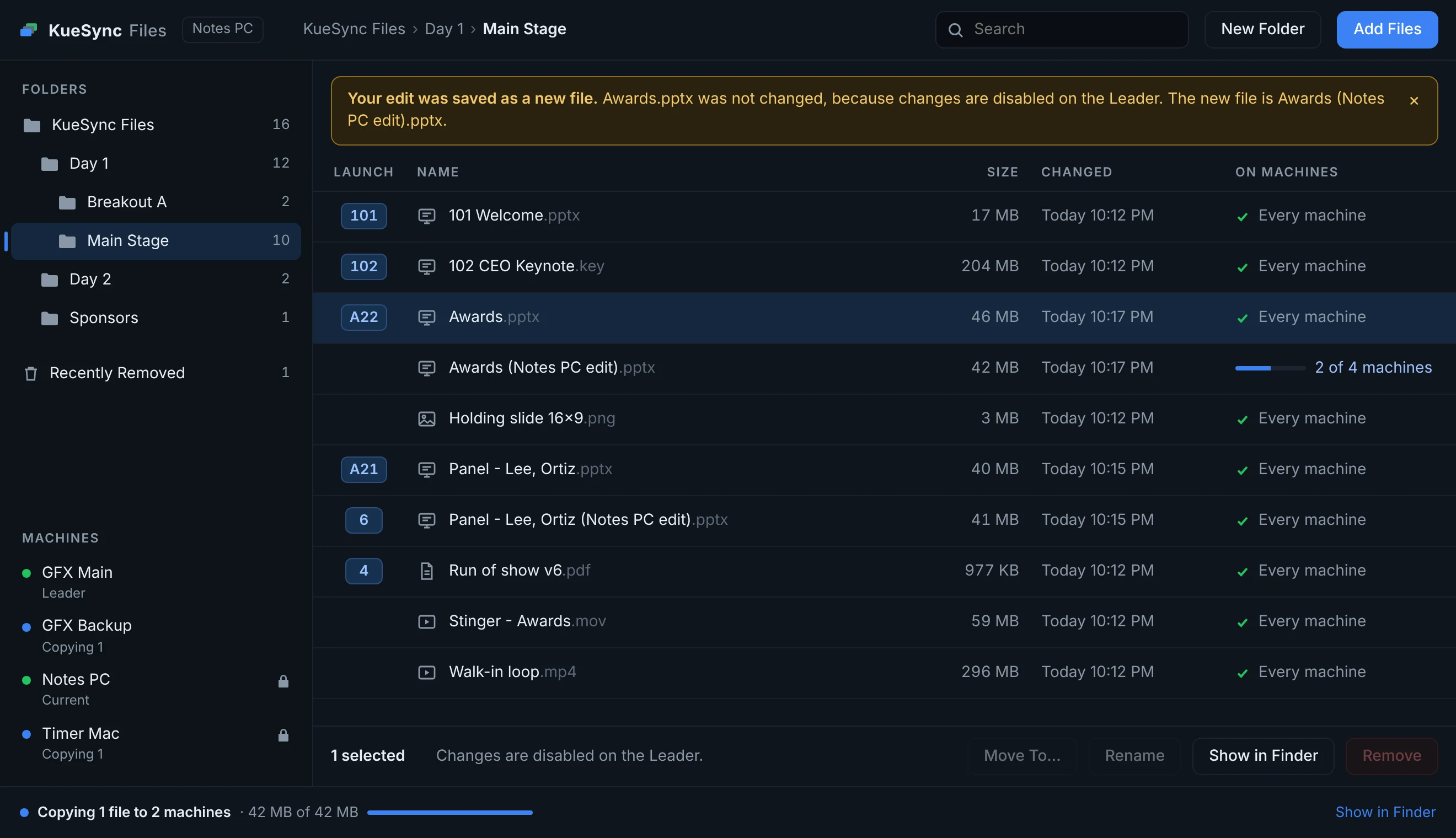
What happens when someone works around the switches in Finder or File Explorer on that machine:
- Adding is off. A new file is moved to Not Added in the window, on that machine only. It is never lost. Add it from a machine that can add files.
- Changes are off. A file removed or renamed there is put back. An edited file is kept as a new file beside the original, such as Panel (Notes PC edit).pptx, with its own launch ID, and goes to every machine. The original stays as it was. If that machine cannot add files either, the edited copy goes to Not Added.
Troubleshooting
| What you see | Fix |
|---|---|
| A file was removed by mistake | Open Recently Removed in the window, select it and press Put Back. It returns on every machine. Removed files are kept for 30 days. |
| A file added on one machine went to Not Added | Adding is off for that machine. Add the file from a machine that can add files, or turn on Add files for that machine on the Leader. |
| An edit came out as a new file named (machine edit) | Changes are off for that machine. Check the new file, then on a machine that can change files, rename it over the original or remove the one you don’t want. |
| A file I removed came back | Changes are off for that machine, so KueSync put it back. Remove it from a machine that can change files. |
| A launch ID is refused | The box says why. Use letters, numbers, dashes and dots, no spaces, up to 24 characters, and an ID no other deck has. |
| The original left its folder when I dragged it in | In Finder or File Explorer, dragging on the same drive moves the file. Use Add Files in the window, or hold Option (Mac) or Ctrl (Windows) while you drag. |
| A machine is still on the old copy | Now Playing names it. If its deck is open, it takes the new copy when the deck closes. Update copies does that for you. |
| A machine has no files | It has to be added to the Leader’s fleet with the Settings and Control PIN. A machine that was never added, or was removed, gets nothing. |
| A deck is dimmed, marked dup #, and will not launch | Another file name starts with the same number. Take the number off the one you don’t want, or give it the next free number. |
| A file shows up as a deck I did not mean to number | Its name starts with digits, such as a year. Move the digits later in the name. |
| Sync is slow on one machine | Keep the folder on a local disk. KueSync moves it off Dropbox, OneDrive, iCloud or Google Drive by itself. Avoid a virtual machine’s shared folder. |