Getting files onto every machine
The Fleet Folder gives every machine in the show its own local copy of the show files, over the show network only, with no cloud and no network share.
Before doors
1Where it is
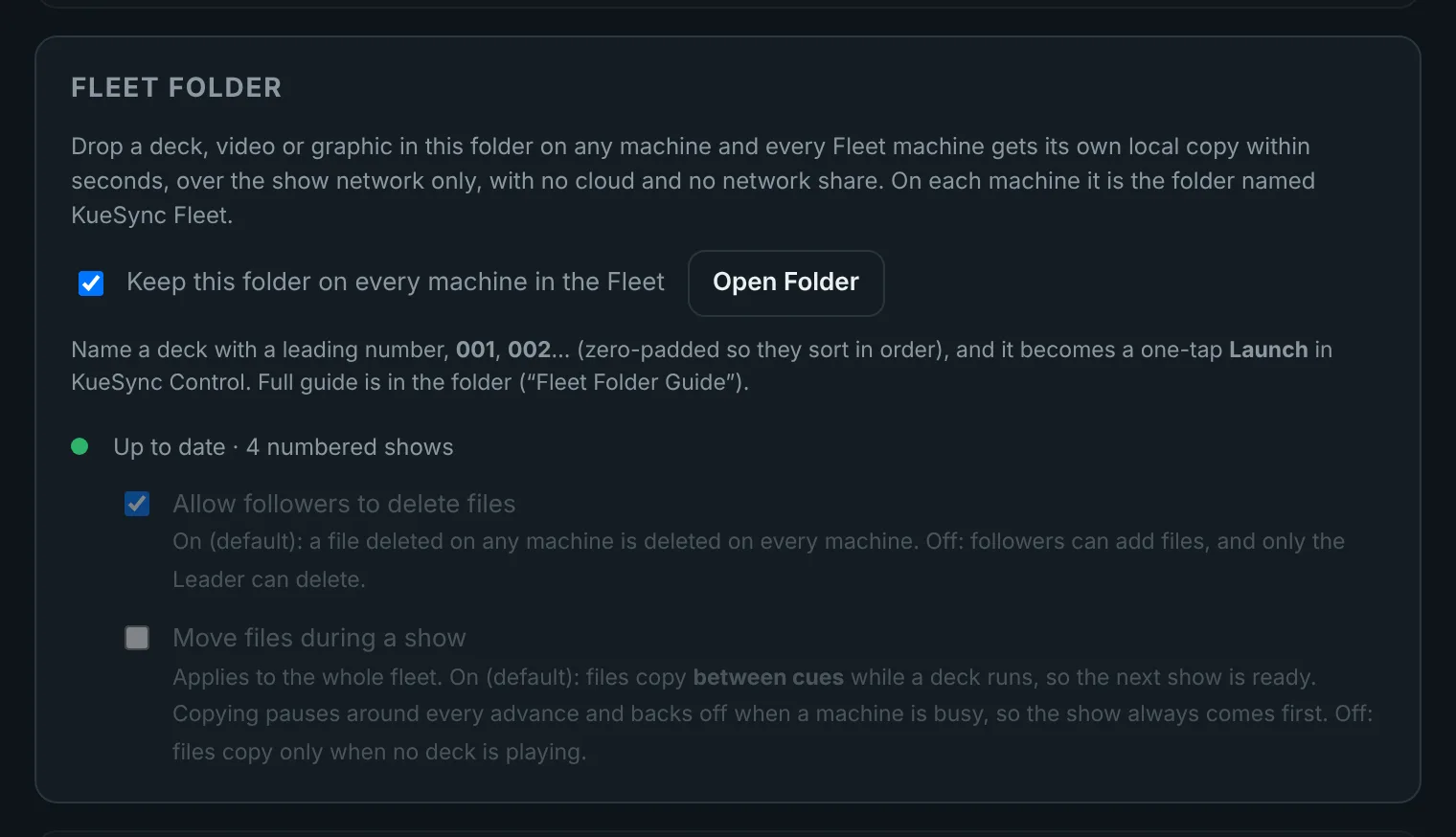
It is on by default. On every machine it is the folder named KueSync Fleet in your home folder. Open it from KueSync menu › Open Folder.
The switch is Settings › Fleet Folder › Keep this folder on every machine in the Fleet. Turning it off from the menu asks first, so a slip while reaching for Open Folder leaves the show alone.
2Load the show from any machine
Drop decks, videos and graphics into KueSync Fleet on any machine in the fleet, the Leader or a follower, and every machine gets its own copy within seconds. Folders sync too, so build your structure (Day 1, Day 2, Video) wherever is handy.
- Dragging from the same drive moves the file. A copy stays in the Fleet Folder but the original leaves its old place. Hold Option (Mac) or Ctrl (Windows) while dragging to keep the original where it is.
- Present from it. Each machine’s copy is a real local file, so open and present straight from its Fleet Folder.
- Loading while a deck runs. With Move files during a show on (the default, in the Leader’s Fleet Folder settings), files copy between cues while a deck plays, pausing around every advance, so the show always comes first. Turn it off and files copy only when no deck is playing.
- Keep your masters elsewhere. It is a way to get content onto machines, not storage: a machine’s Fleet Folder is emptied when it leaves the fleet.
3Number the decks: one-tap launches
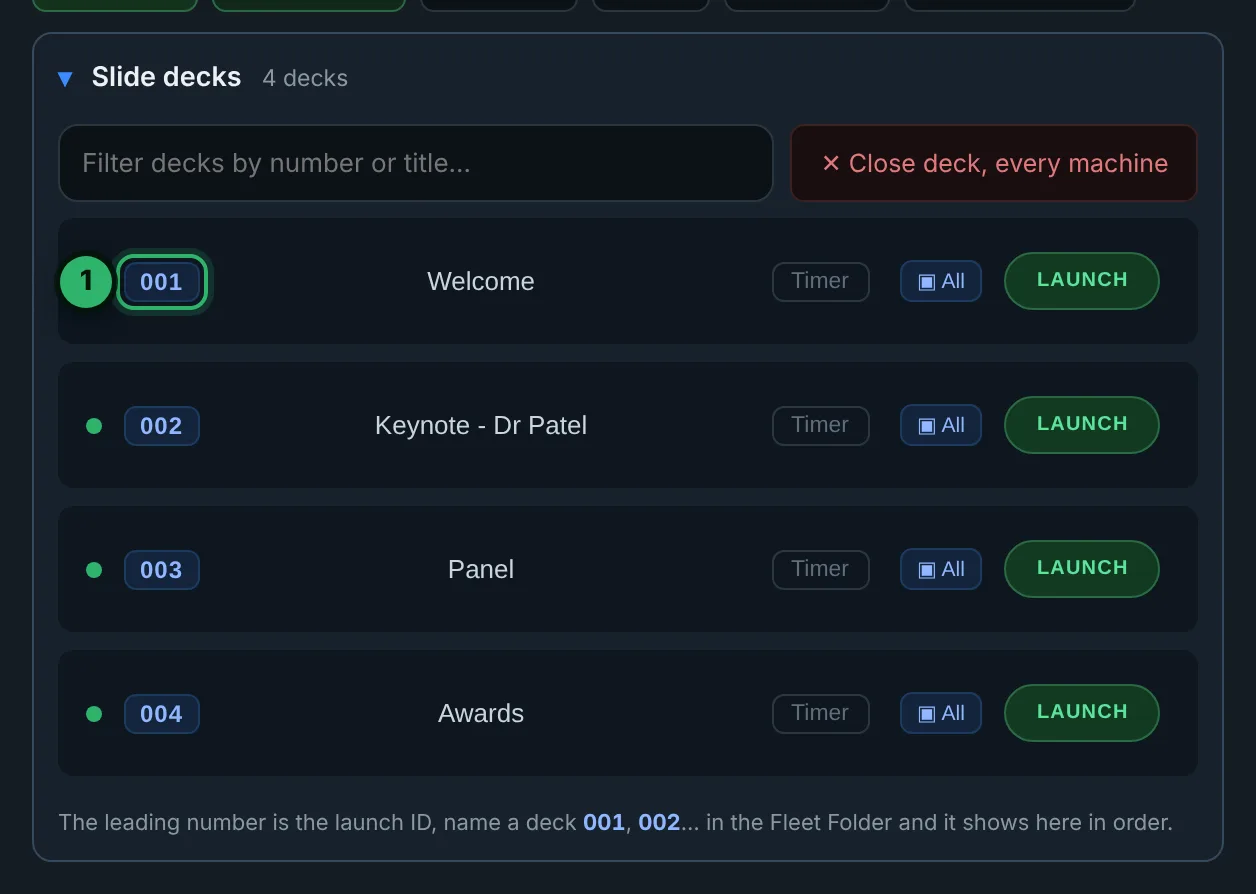
Start a deck’s name with a number, 001 Welcome.pptx, 002 Keynote.key, and it becomes a one-tap launch in KueSync Control, in number order. PowerPoint, Keynote and PDF decks count.
How launches pick machines, clickers and the timer is in Running the decks.
Folders, and numbers in blocks
Organize KueSync Fleet in folders however you like: Day 1, Day 2, Breakouts, Video. KueSync reads every folder inside it, and the list in KueSync Control stays in number order whatever folder a deck is in.
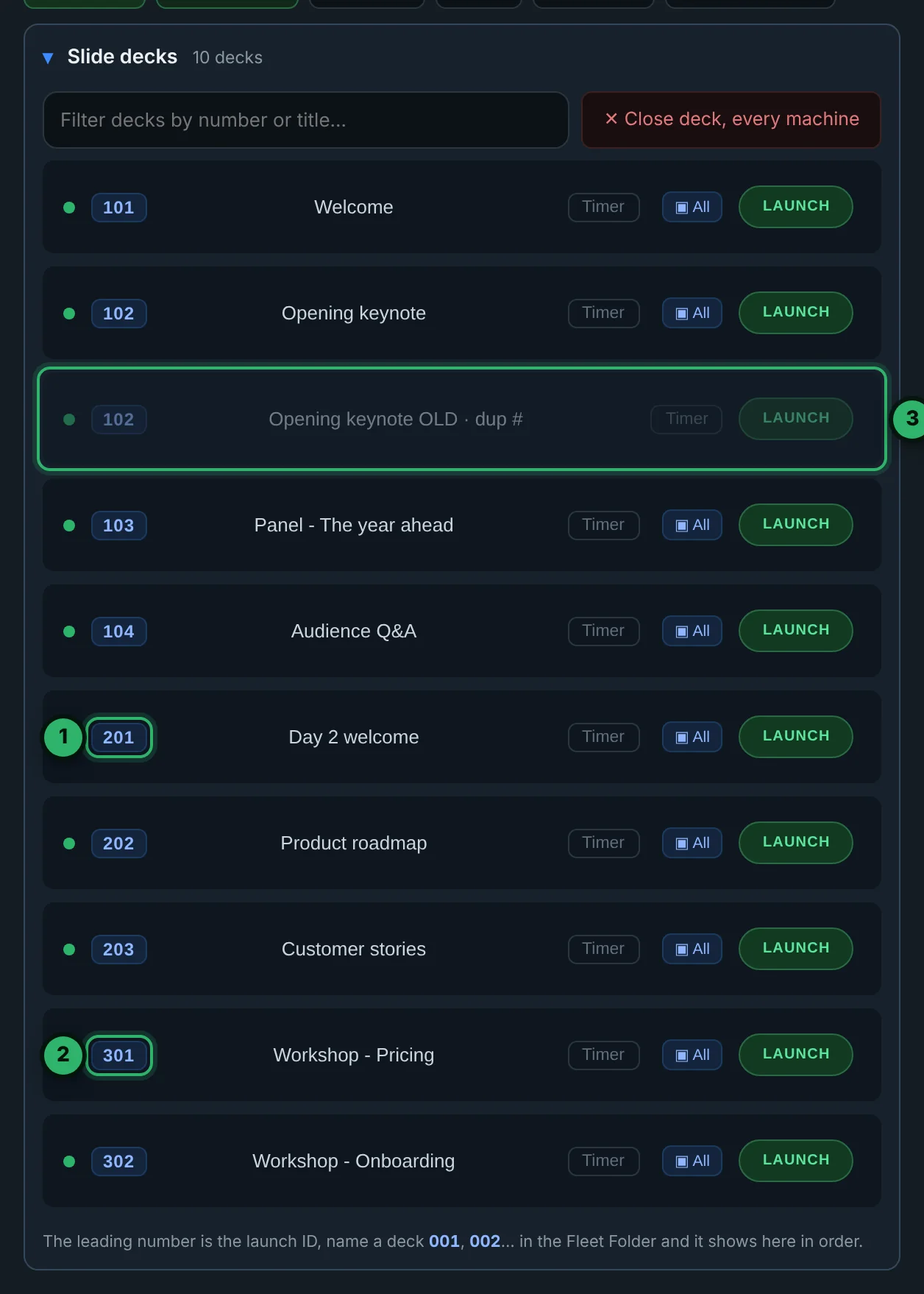
- 1A block of numbers per day: Day 1 is 101 to 199, Day 2 starts at 201. A deck added late takes the next free number in its block, and nothing else is renumbered.
- 2A block per room too: the Room A breakouts start at 301, in their own folder, Breakouts › Room A. The folder does not matter; the number is the address.
- 3One number, one deck. When two decks share a number, the first by folder and name, A to Z, is the one that launches; the other is dimmed and marked dup #, and its Launch does nothing.
- A number is 1 to 9999. 1002 works. 006 and 6 are the same deck, so pick one style; zero-padding (001, 002) keeps Finder and File Explorer in the same order as KueSync Control.
- Keep an old version without its number. A copy in an Old folder still counts, and can win the number if its folder sorts first. Rename it (OLD Opening keynote.key) or move it out of KueSync Fleet.
- Watch names that start with a year. 2026 Budget review.pptx becomes deck 2026. Put the year later in the name if it is not a launch.
- Only the first four digits are read: 12345 Name.pptx is deck 1234.
During the show
4A late change from a presenter
Save the new version over the old one in KueSync Fleet, on any machine. KueSync Control’s Now Playing shows where the update came from, which machines are still receiving it, and which are still running the earlier copy.
Between segments, press Update: it relaunches only those machines from the new deck and brings them to the slide and build the change was made on. A machine with the deck open takes the new copy as soon as the deck closes there.
5Deletes, safely
A delete on one machine removes the file across the fleet, into a recoverable trash rather than gone. Putting a file back brings it back everywhere.
To stop followers removing files, turn off Allow followers to delete files in the Leader’s Settings. Followers can still add content; only the Leader can remove it.
Troubleshooting
| What you see | Fix |
|---|---|
| A file was deleted by mistake | It went to the recoverable trash. Put it back in KueSync Fleet on any machine and it returns everywhere. |
| The original left its folder when I dragged it in | Dragging on the same drive moves the file. Next time hold Option (Mac) or Ctrl (Windows). |
| A machine is still on the old copy | Now Playing names it. If its deck is open, it takes the new copy when the deck closes; Update does that for you. |
| A machine has no Fleet Folder content | It must be added to the Leader’s fleet with the Settings and Control PIN. A machine that was never added, or was removed, gets nothing. |
| A deck is dimmed, marked dup #, and will not launch | Another deck has the same number. Take the number off the one you do not want, or give it the next free number. |
| The wrong version launches | An older copy has the same number and sorts first. Rename or remove the old copy. |
| A file shows up as a deck I did not mean to number | Its name starts with digits, such as a year. Move the digits later in the name. |
| Sync is slow on one machine | Keep the folder on a local disk. KueSync moves it off Dropbox, OneDrive, iCloud or Google Drive by itself; avoid a virtual machine’s shared folder. |
Pre-show checklist
- Every deck, video and graphic is in KueSync Fleet.
- Decks are numbered in running order, a block per day or room: 101, 102, 201.
- No dup # in KueSync Control: every number is used once.
- KueSync Control lists every numbered deck.
- Masters are kept somewhere other than the Fleet Folder.
- You know who may delete files during the show.